General
The SDK configuration is a Codable struct that contains all the information required to launch the SDK. For launch details, see the API section of this documentation.
Configuration example
In the NfcReadConfiguration, there are several parameters that can be adjusted to customize your experience.
All these parameters are nested within the main setup configuration object.
This object centralizes the customization of the SDK’s behavior and appearance, allowing you to adjust multiple aspects of the flow from a single place.
{
    "medias": "not part of this section; see customization",
    "texts": "not part of this section; see customization",
    "styles": "not part of this section; see customization",
    "setup": {
        "language": "es",
        "uiOrientation": "portrait",
        "logoShow": true,
        "closeButtonShow": true,
        "instructionsShow": true,
        "cancelButtonInstructionsShow": true,
        "maxRetries": 3,
        "keys": ["DG1_NAME", "DG1_SURNAME", "DG1_DOC_NUMBER", "DG1_DOB", "DG1_DOE"],
        "prefill": {
            "documentNumber": "BAA000589",
            "dateOfBirth": "860816",
            "dateOfExpiry": "281127"
        }
    }
}
| Parameter | Description | Default Value | Possible Values |
|---|---|---|---|
| language | Text default values language | device | es, en or device |
| uiOrientation | Determines the selected rotation | portrait | landscape, portrait |
| logoShow | Displays the header with the logo if set to true | true | true or false |
| closeButtonShow | Displays the close button if set to true | true | true or false |
| instructionsShow | Displays the instructions view if set to true | true | true or false |
| cancelButtonInstructionsShow | Hide the cancel button in instructions view if set to false | true | true or false |
| maxRetries | Maximum number of retries after a failed reading | 3 | 0 or greater |
| prefill | Document data used to open the chip, skipping the form | — | See prefill |
| keys | Data fields returned in the result | none | List of result keys |
Validation
The SDK internally validates the configuration received, following this process:
- Those properties not inserted in the config will take the default values, as shown above.
- Each filled property will have its type validated against the types as shown in the table above. A value of the wrong type (for example, a string in
maxRetries) makes theJSONDecoderfail when decoding theNfcReadConfiguration, before the SDK is started. - Each filled property will be compared to the allowed values indicated in the table above.
If all these steps are successful, the SDK will start normally. However, if any of these steps finds a misconfiguration,
the SDK does not start and an error configValidationError will be returned through onNfcReadFinished(error:) in your NfcReadDelegate, with a description of the problem in its info.
prefill and keys are not validated as errors
An incomplete or invalid prefill does not stop the SDK: the flow simply shows the form so the user can enter the data. An unknown entry in keys is ignored.
language
The language setting plays a crucial role in ensuring that users experience the reading process in a language that is familiar and comfortable to them. By default, the SDK utilizes the device language to determine the appropriate default texts. If the device language is Spanish (es), the Spanish texts will be applied. For any other language, the SDK will fall back to English as the default language, ensuring that users receive texts in a language they can understand.
When customizing texts within the setup sections, it's important to note that these customized texts will override the default texts included within the SDK. This feature allows for extensive personalization and localization of the reading experience, catering to specific cultural or regional preferences.
In instances where all texts are intended to be customized, there's no need to explicitly specify the language setting. The default language logic will be bypassed, and all text customizations will take precedence. This approach provides complete flexibility in tailoring the reading process to the desired language and cultural context.
To show all texts in a different language (for example Catalonian, Basque, French, etc) It's mandatory to translate them all using the available text parameters in customization text section.
System NFC sheet
The texts inside the system NFC sheet (actionSheetSubtitle) follow this setting too, but the sheet's own controls, such as its cancel button, are drawn by iOS in the device language.
Applies to
All screens
Example of language changed:
"setup": {
    "language": "en",
}
uiOrientation
This setting forces the SDK screens into the selected orientation.
By default, the SDK works in portrait mode. If the option is set to "landscape", the SDK will only work in landscape mode. Any value other than "portrait" or "landscape" is a configuration error.
Applies to
All screens
Example of uiOrientation changed:
"setup": {
    "uiOrientation": "landscape",
}
logoShow
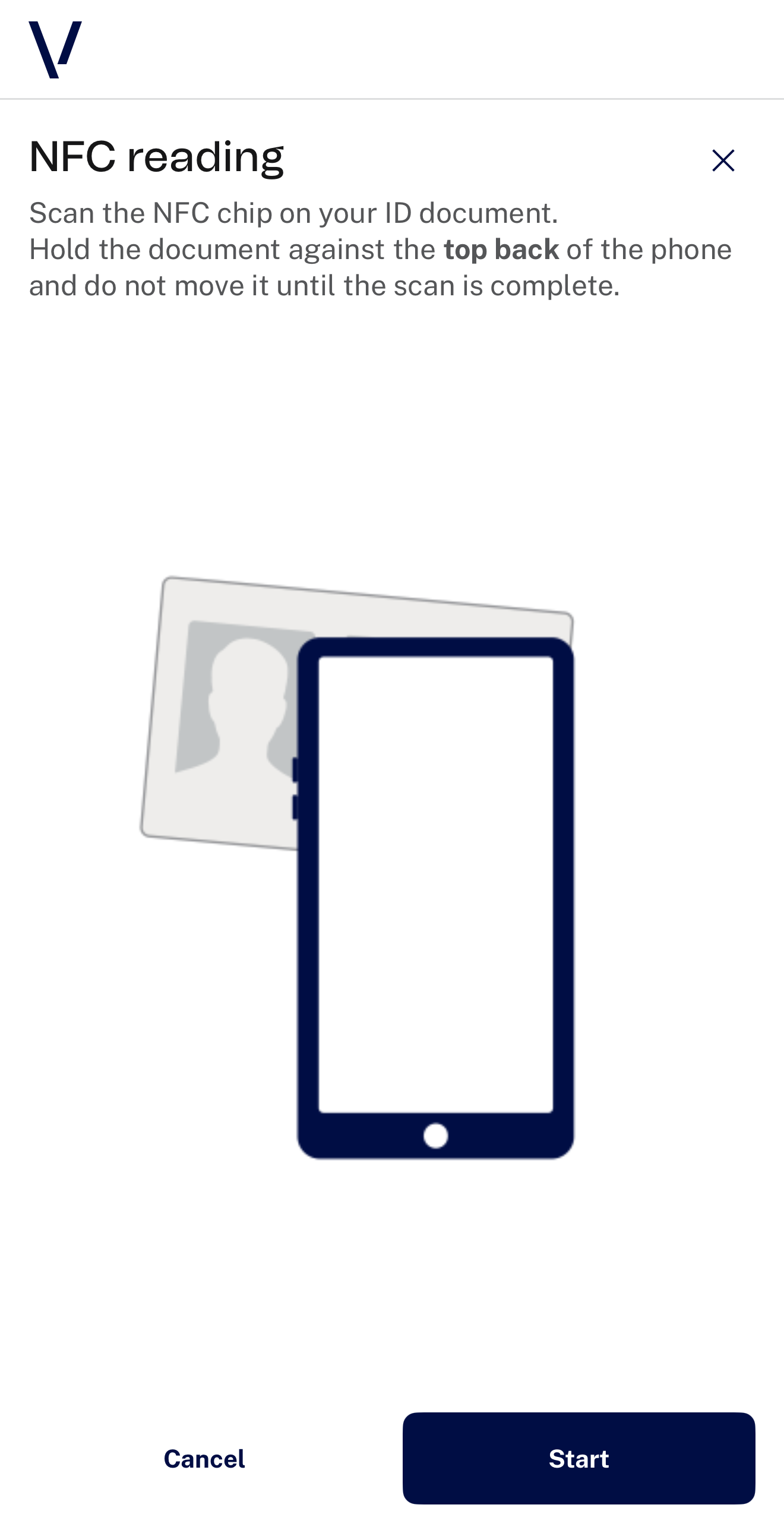
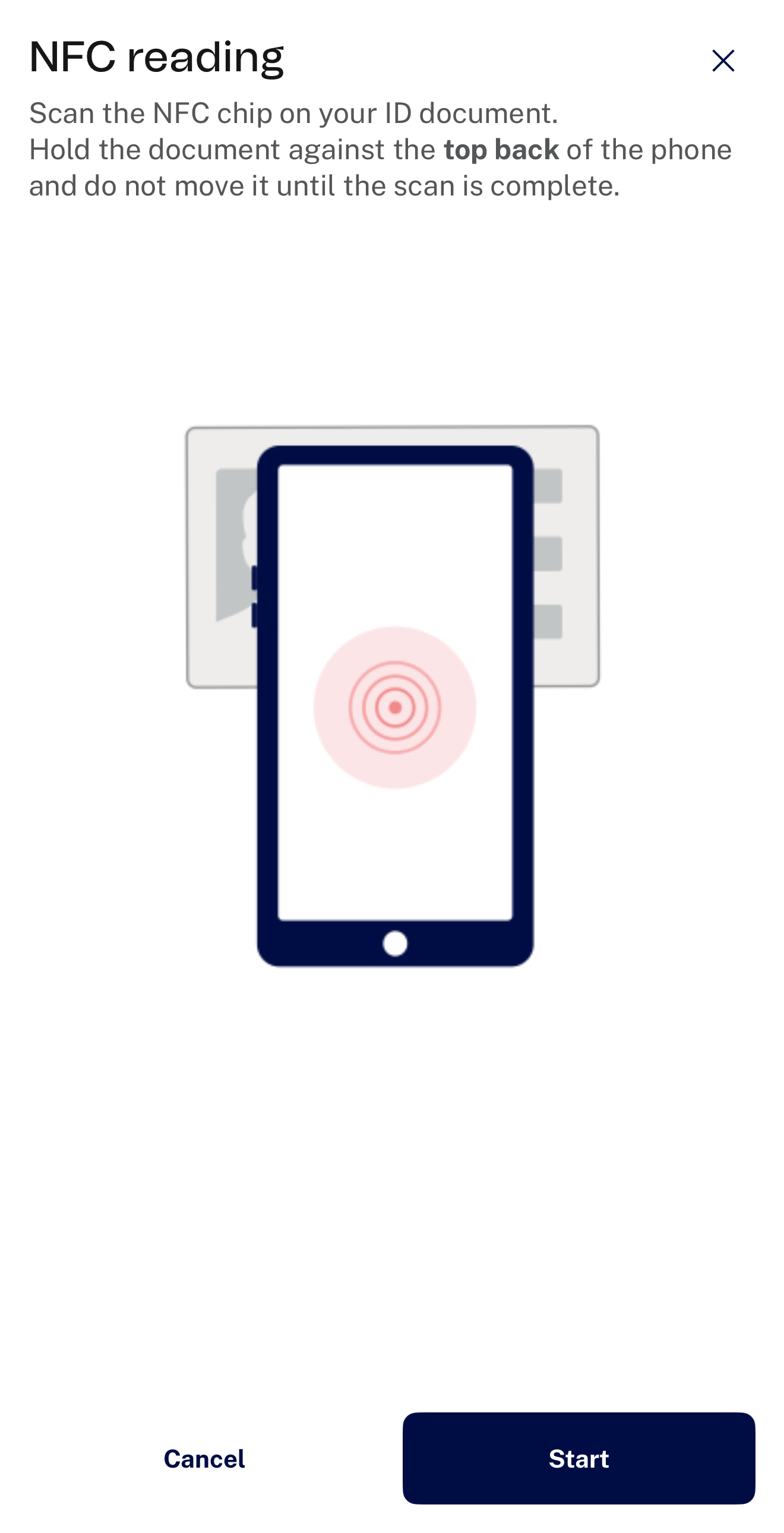
This setting allows you to show or hide the logo consistently across all screens, ensuring branding flexibility based on the desired user experience.
If the option to display the logo is disabled, the header component will be removed entirely.
As a result, the vertical space normally occupied by the header component will be released and made available to the SDK. This allows the SDK interface to expand and make full use of the upper portion of the screen, providing a more immersive or space-efficient layout depending on the device and context of use.
Applies to
All screens
Example of logo removed:
"setup": {
    "logoShow": false,
}
| Default Configuration | Custom Configuration |
|---|---|
 |
 |
closeButtonShow
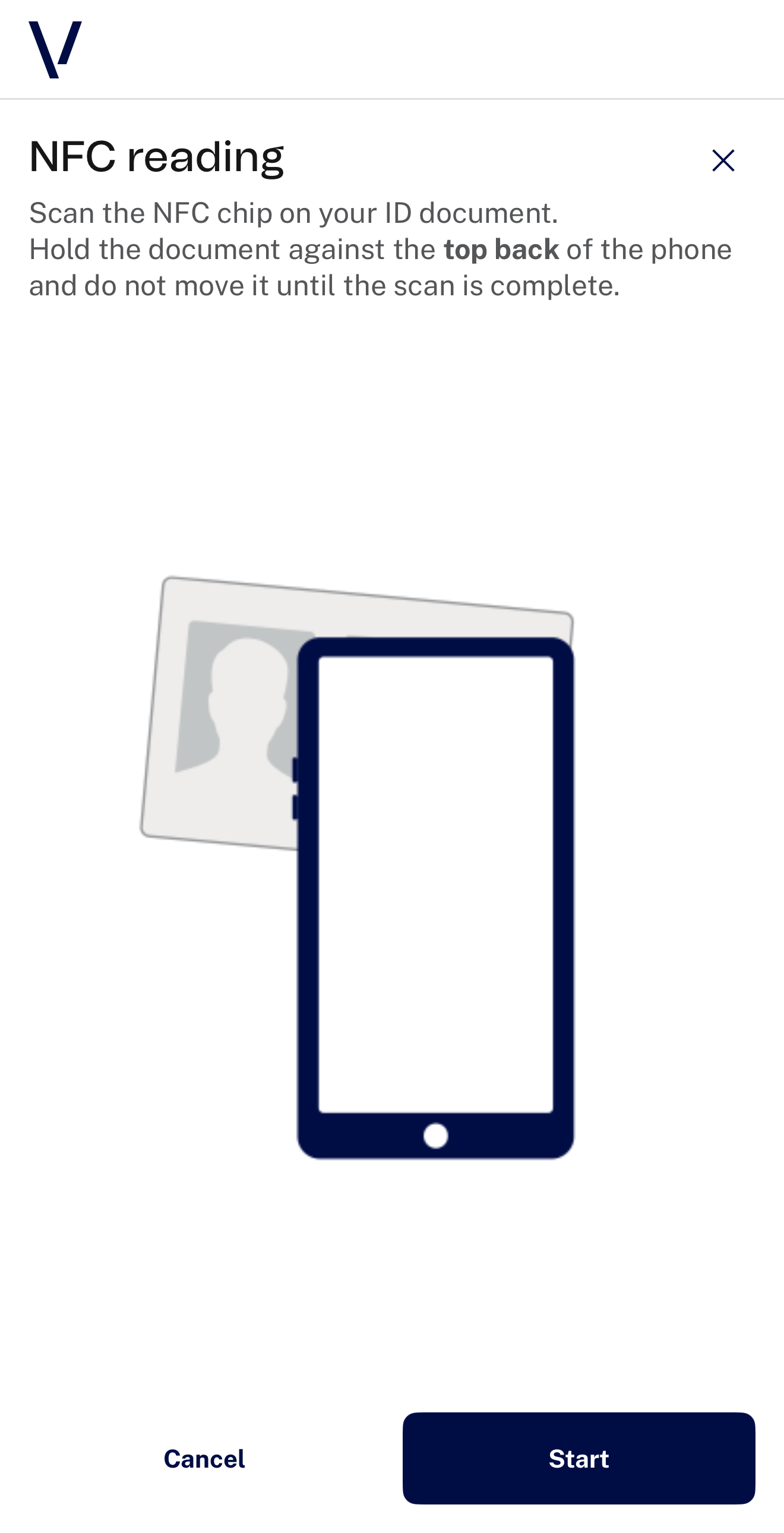
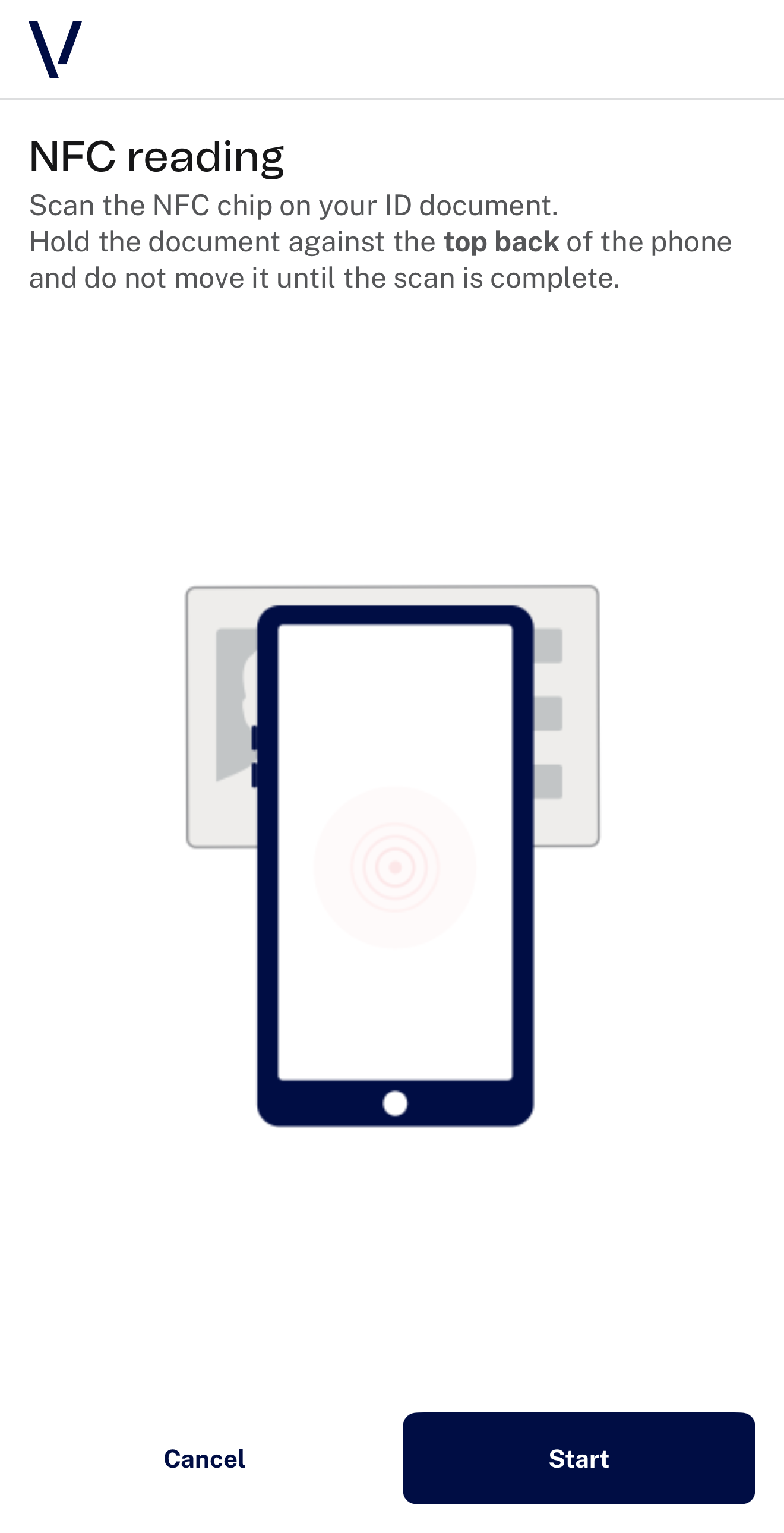
Every flow should provide a way to exit the process, which is why a close button is included by default.
If your integration already includes an external close or abort mechanism (such as a custom "X" button that calls NfcRead.stop()), you can configure this parameter to hide the built-in close button. It also hides the cancel button of the document data form.
However, we strongly recommend keeping the SDK's close button visible to ensure a consistent and user-friendly experience across all use cases and devices.
Applies to
All screens
Example of closeButtonShow removed:
"setup": {
    "closeButtonShow": false,
}
| Default Configuration | Custom Configuration |
|---|---|
 |
 |
instructionsShow
The instructions screen is enabled by default to inform the user about what to expect before starting the process: how to hold the document against the phone so that the chip can be read.
This parameter allows you to disable the instructions screen, although doing so is not recommended unless your integration includes custom instructions beforehand.
Without clear guidance at the beginning, users may feel confused or unsure about where to place the document, which can lead to a poor experience or failed readings.
Applies to
| Screen | Mobile |
|---|---|
| Instructions | 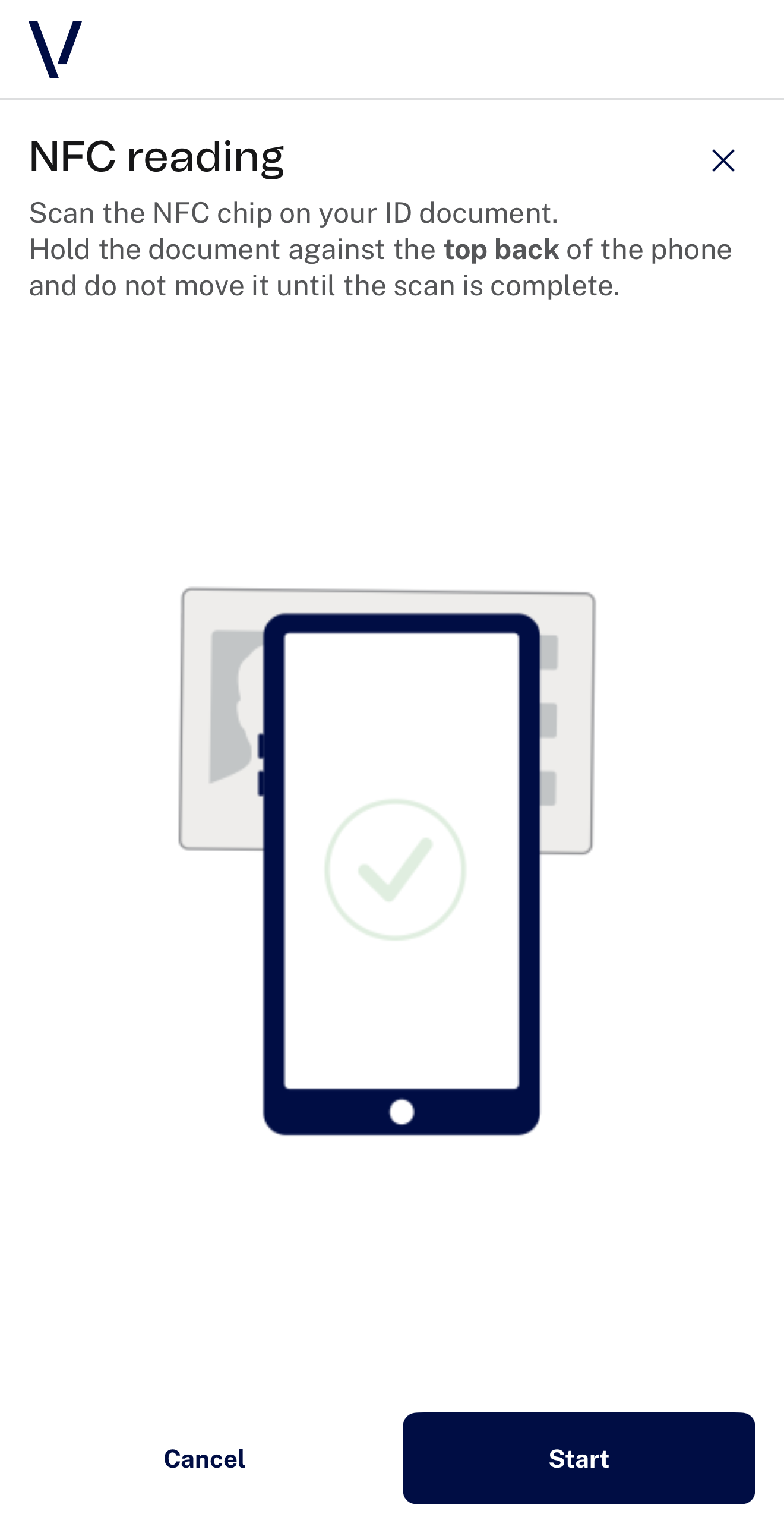 |
Example of instructionsShow removed:
"setup": {
    "instructionsShow": false,
}
| Screen | Mobile |
|---|---|
| Instructions (skipped if false) | |
| Document data form | 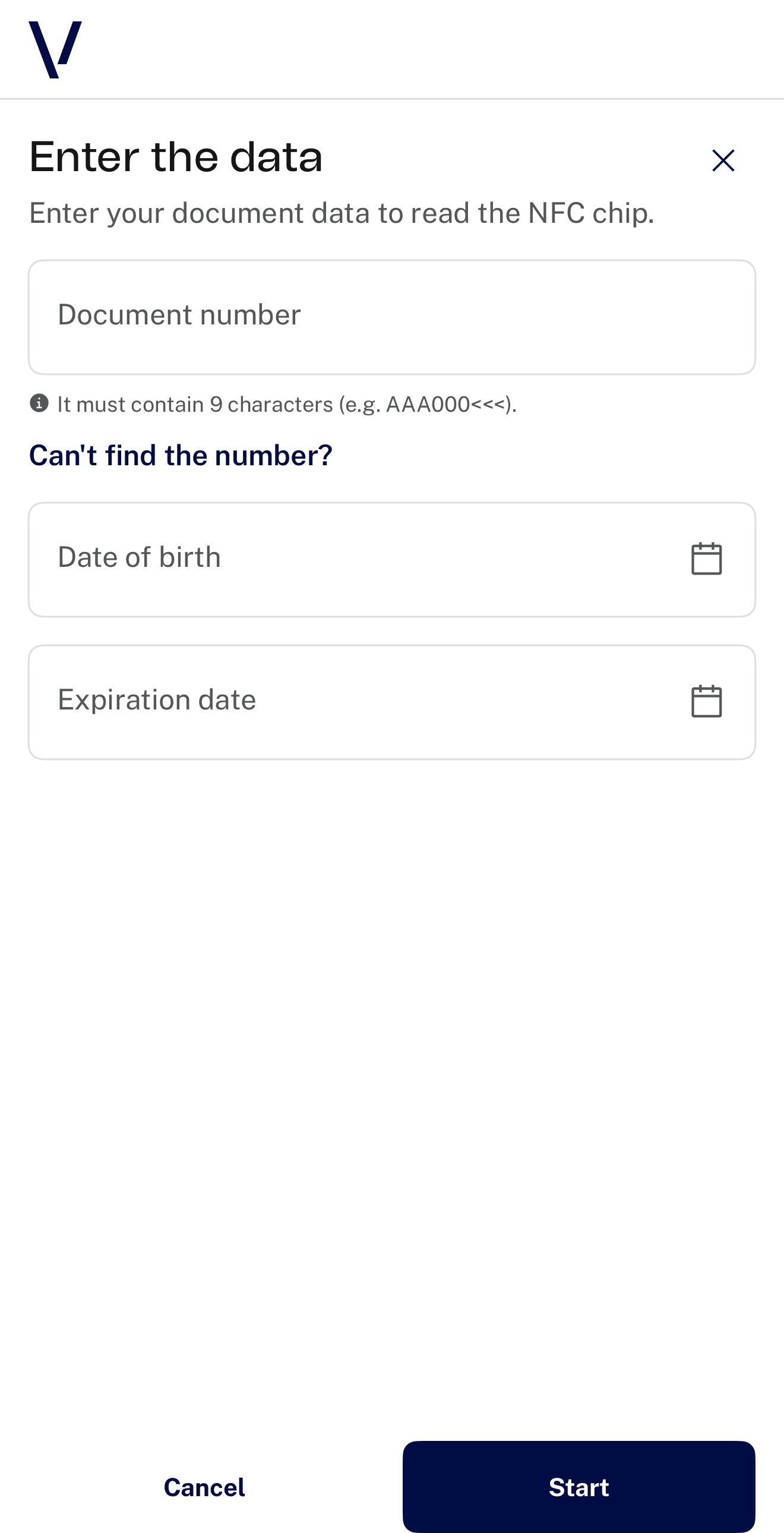 |
| Reading | 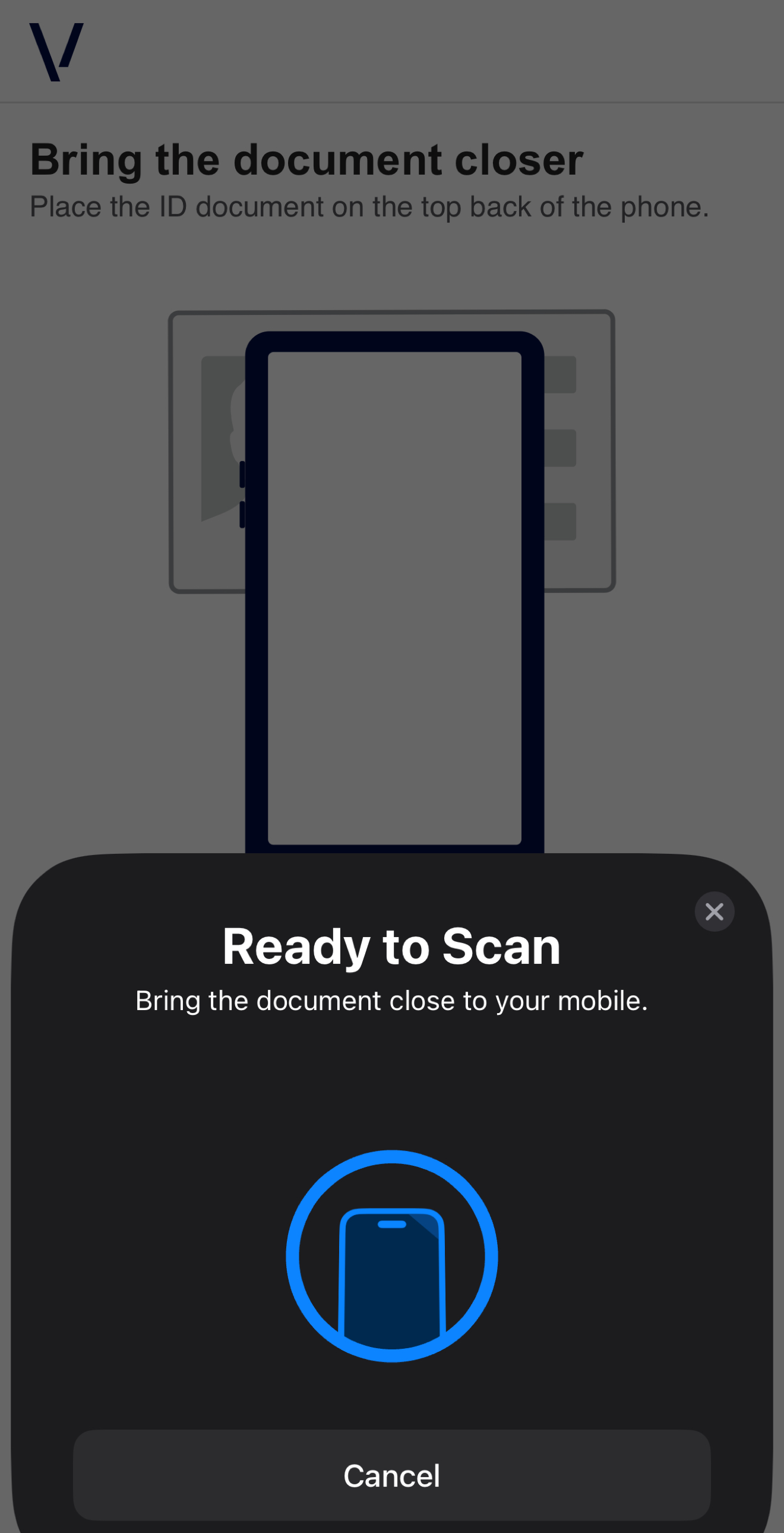 |
| Feedback | 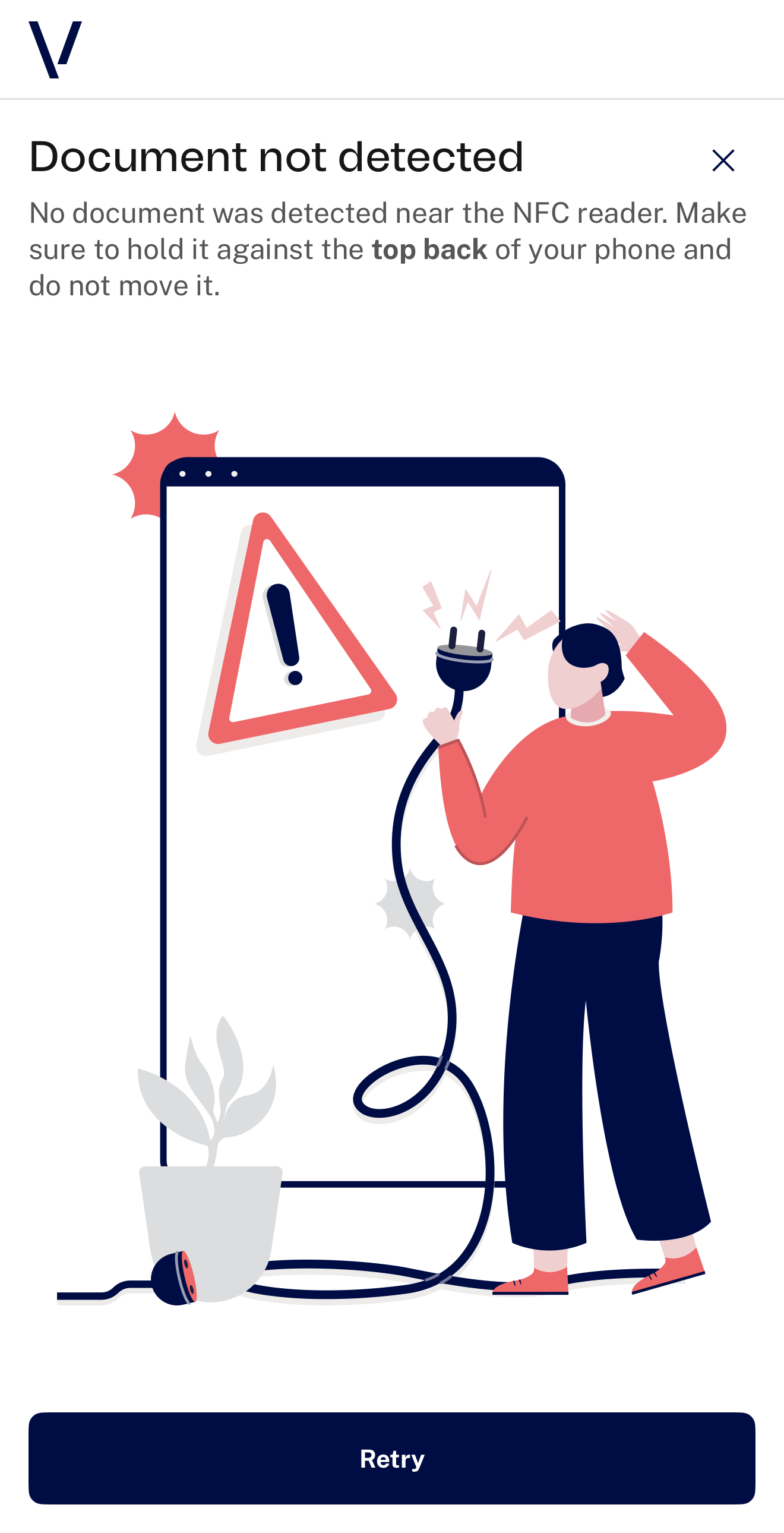 |
| Finish | End of the process |
cancelButtonInstructionsShow
The cancel button in instructions is enabled by default, so the user can leave the process from the instructions screen. This parameter lets you hide the cancel button only for the instructions view.
Applies to
| Screen | Mobile |
|---|---|
| Instructions | |
Example of cancelButtonInstructionsShow removed:
"setup": {
    "cancelButtonInstructionsShow": false,
}
| Screen | Mobile |
|---|---|
| Instructions | 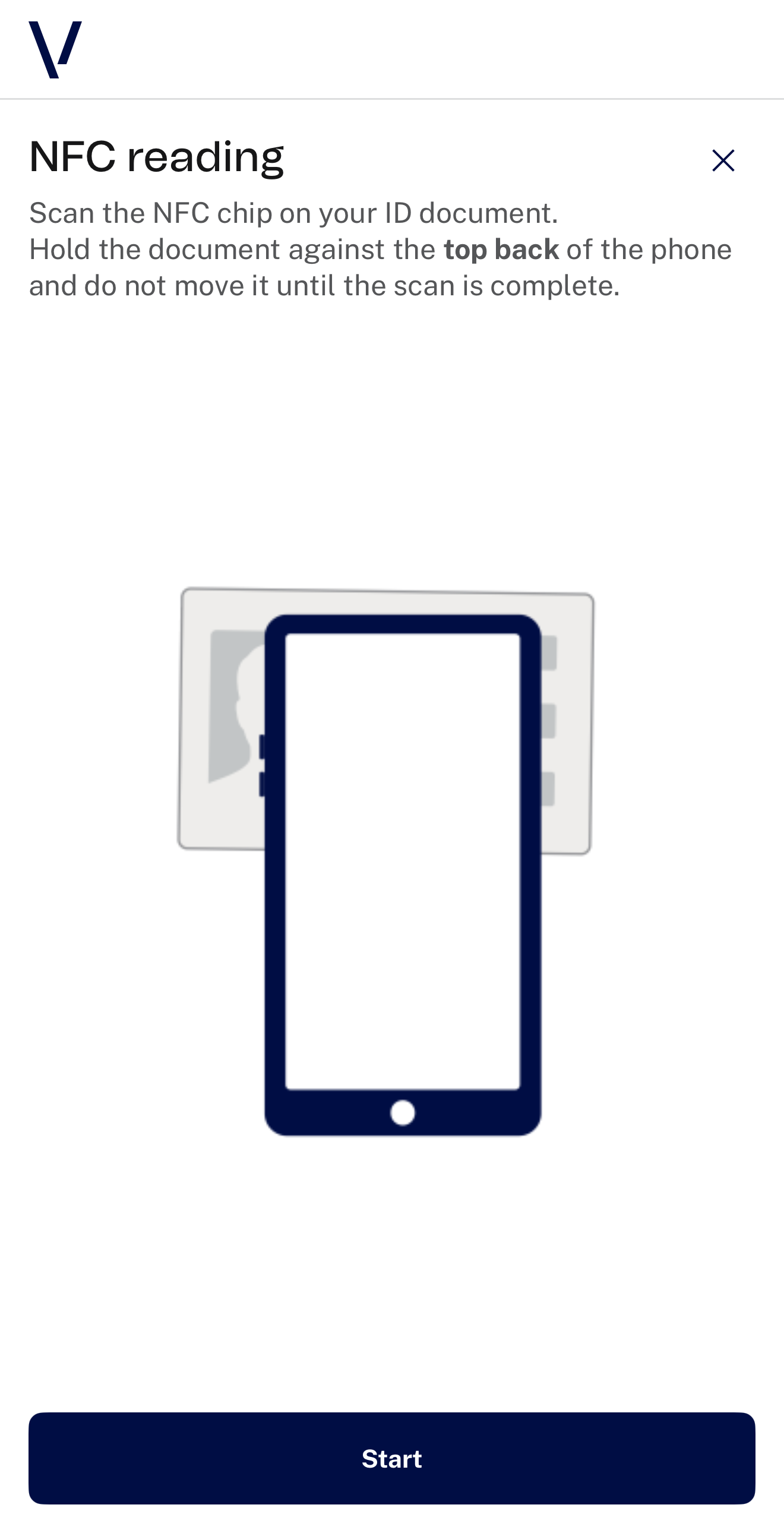 |
maxRetries
Sets the maximum number of times the user can retry the reading after a failed attempt. The first reading is not a retry, so the user gets maxRetries + 1 attempts in total: with the default value of 3, one reading and up to three retries. With 0, the first failed reading ends the process.
A reading uses a retry when it fails because:
- The document is not detected.
- The reading is interrupted (for example, because the document was moved too early).
- The document cannot be read by NFC.
- The user cancels the system NFC sheet.
- The chip cannot be opened with the document data (wrong document data). The SDK goes back to the form so the user can correct it.
While retries remain, the SDK lets the user try again: from a feedback screen, or from the form after wrong document data. When a reading fails and no retries are left, the SDK closes and returns maxRetriesReached through onNfcReadFinished(error:).
A reading interrupted because the app went to the background does not use a retry.
The value must be 0 or greater; a negative value is a configuration error.
Applies to
| Screen | Mobile |
|---|---|
| Reading | |
| Feedback | |
Example of maxRetries changed:
"setup": {
    "maxRetries": 5,
}
prefill
To open the chip, the SDK needs three values printed in the MRZ of the document: the document number, the date of birth and the date of expiry. By default, the SDK asks the user for them in a form.
If your app already knows them (for example, from the OCR of a previous document capture), set them in prefill. When the three values are present and valid, the form is skipped and the reading starts right away.
Field |
Description | Format |
|---|---|---|
documentNumber |
Document number, as printed in the MRZ. On the Spanish DNIe, this is the support number (número de soporte). The MRZ document number has 9 characters: a shorter number is completed with < up to 9, e.g. "AB123<<<<". In prefill the SDK adds the missing < itself, so "AB123" works too. In the form, the user must enter all 9 characters, including the <. A number longer than 9 characters is used in full. |
Text, not empty |
dateOfBirth |
Date of birth. | MRZ format yyMMdd, e.g. "860816" |
dateOfExpiry |
Date of expiry. | MRZ format yyMMdd, e.g. "281127" |
Date format
The dates use the MRZ format yyMMdd (six digits), the same values the chip is opened with. Any other format, such as 1986-08-16, is not valid.
If any of the three values is missing or invalid (for example, a date that does not exist), the prefill is ignored and the form is shown, so the user can enter the data.
If the chip cannot be opened with the prefilled data, the SDK shows the form with the data filled in, so the user can correct it.
Runtime data
This data belongs to the holder of the document, so it should usually be set at runtime with NfcSetup.setPrefill(_:) rather than stored in a static JSON file. See Providing the document data at runtime.
Applies to
| Screen | Mobile |
|---|---|
| Document data form | |
Example of prefill:
"setup": {
    "prefill": {
        "documentNumber": "BAA000589",
        "dateOfBirth": "860816",
        "dateOfExpiry": "281127"
    }
}
Screen |
Mobile |
|---|---|
| Instructions | |
| Document data form (skipped if prefill is valid) | |
| Reading | |
| Finish | End of the process |
keys
Lists the data fields that the SDK returns in keysData, the data part of the result. Each entry is one of the result keys, such as DG1_NAME, DG1_DOB or DG11_PERS_NUM. These are the same keys used by the legacy NFC reader and by the Veridas services (nfcKeys).
Set the keys you need
By default, no data field is returned: if keys is not set or is empty, keysData only carries the photos. List every field your integration needs.
- Only the listed keys are returned, and only when the chip carries a value for them.
- The photos,
cut_photoandsignature, are always returned when the chip carries them, whether they are listed or not. - The keys are case-sensitive and must match the result keys exactly. An unknown key is ignored.
certificate,authenticationanddataGroupHashesare always returned, whatever the keys.
Runtime data
When your flow uses the Veridas services, the keys come at runtime with the document (nfcKeys). Set them with NfcSetup.setKeys(_:) before starting the SDK. See Providing the document data at runtime.
Applies to
Results
Example of keys:
"setup": {
    "keys": ["DG1_NAME", "DG1_SURNAME", "DG1_DOC_NUMBER", "DG1_DOB", "DG1_DOE", "DG1_NATIONALITY"]
}