Customization
Overview
The SDK offers a flexible and modular customization system designed to adapt to your brand identity, user needs, and accessibility standards—whether you're launching a quick integration or implementing a deeply tailored experience. A key advantage of this system is that you can start broad and refine as needed. Begin by applying global changes to colors, typography, and styles at the theme level. Then, if needed, progressively fine-tune individual components or interactive states. Each section supports partial configuration—you only need to override the values that are relevant for your use case. Any keys left undefined will automatically fall back to the SDK’s default values, ensuring robustness and ease of maintenance. This approach enables teams to deliver a cohesive, accessible, and brand-aligned experience with minimal effort, while still offering full control for advanced customization.
The sections that follow detail how to configure:
- Texts (labels, messages, instructions, accessibility strings)
- Media (illustrations and image assets per screen)
- Styles (design tokens, layout, colors, and typography)
- Components (buttons, header, spinner, modals, calendar and more)
With this structure, you can create a customized user experience that feels natively integrated into your product—without sacrificing speed or maintainability.
Texts
The system also provides flexible control over the text content displayed throughout the interface. Instead of editing hardcoded labels or messages in multiple places, you can configure all user-facing texts from a centralized section. This approach allows you to easily adapt the language to suit your brand tone, localization needs, or specific use cases, whether it's updating button labels, instructions, error messages, or screen titles. By modifying just a few key parameters, you can ensure that the entire experience feels cohesive, consistent, and aligned with the expectations of your users.
Below is the full JSON structure containing all the configurable text elements used throughout the interface. This includes everything from screen titles and helper messages to button text and accessibility descriptions.
The texts are organized in the following sections:
Section |
Content |
|---|---|
common |
Texts shared by all screens: exit confirmation modal, calendar of the date fields, and the alternative texts of the logo, the close button, the modals and the text fields. |
instructions |
Instructions screen. |
formNoData |
Document data form: title, fields with their labels, placeholders and helper texts, and the "Can't find the number?" help modal. |
reading |
Reading screen, one entry per stage: presentation (bring the document closer), inProgress (reading) and success. |
error |
Feedback screens: readingFailed, timeout, readingCanceled, unsupportedDocument, focusLoss, verification (generic error) and wrongKey (wrong document data, shown on the form). |
You are not required to modify the entire structure. The configuration is highly flexible, allowing you to override only the specific text entries you want to customize. If a given key is not explicitly redefined, the SDK will automatically fall back to its default value ensuring smooth operation even with partial configurations.
This gives you full control over the messaging without unnecessary complexity, making it easier to maintain consistency and adapt the interface to your product's voice and audience.
System NFC sheet texts
While the chip is being read, iOS shows its own NFC sheet on top of the SDK. The actionSheetSubtitle keys set the message shown inside that sheet at each stage:
| Key | When it is shown |
|---|---|
reading.presentation.actionSheetSubtitle |
Waiting for the document. |
reading.inProgress.actionSheetSubtitle |
Reading the chip. |
reading.success.actionSheetSubtitle |
Reading completed. |
error.timeout.actionSheetSubtitle |
The document was not detected. |
error.readingFailed.actionSheetSubtitle |
The reading was interrupted. |
error.unsupportedDocument.actionSheetSubtitle |
The document is not supported. |
The NFC sheet is drawn by the system, so these texts are shown as plain text: HTML tags are not supported in them. Keep them short.
HTML in texts
Take into account that ASCII codes (e.g., \n) will not be interpreted and will be shown as-is. Only some HTML tags can be used in section titles and subtitles to better adapt the messaging. If an unsupported tag is included, the text will be rendered as plain text.
The list of allowed tags is as follows:
<b></b><i></i><br/><ul></ul><li></li><ol></ol>
Example of title and subtitle with HTML inside:
"texts": {
    "instructions": {
        "title": "Read the <b>chip</b> of your document",
        "subtitle": "<i>Follow these steps:</i> <ol><li>Remove the phone case if it is very thick.</li><li>Hold the document against the <b>top back</b> of the phone.</li><li><b>Do not move it</b> until the reading is finished.</li></ol>"
    }
}
| Screen | Mobile |
|---|---|
| Instructions | 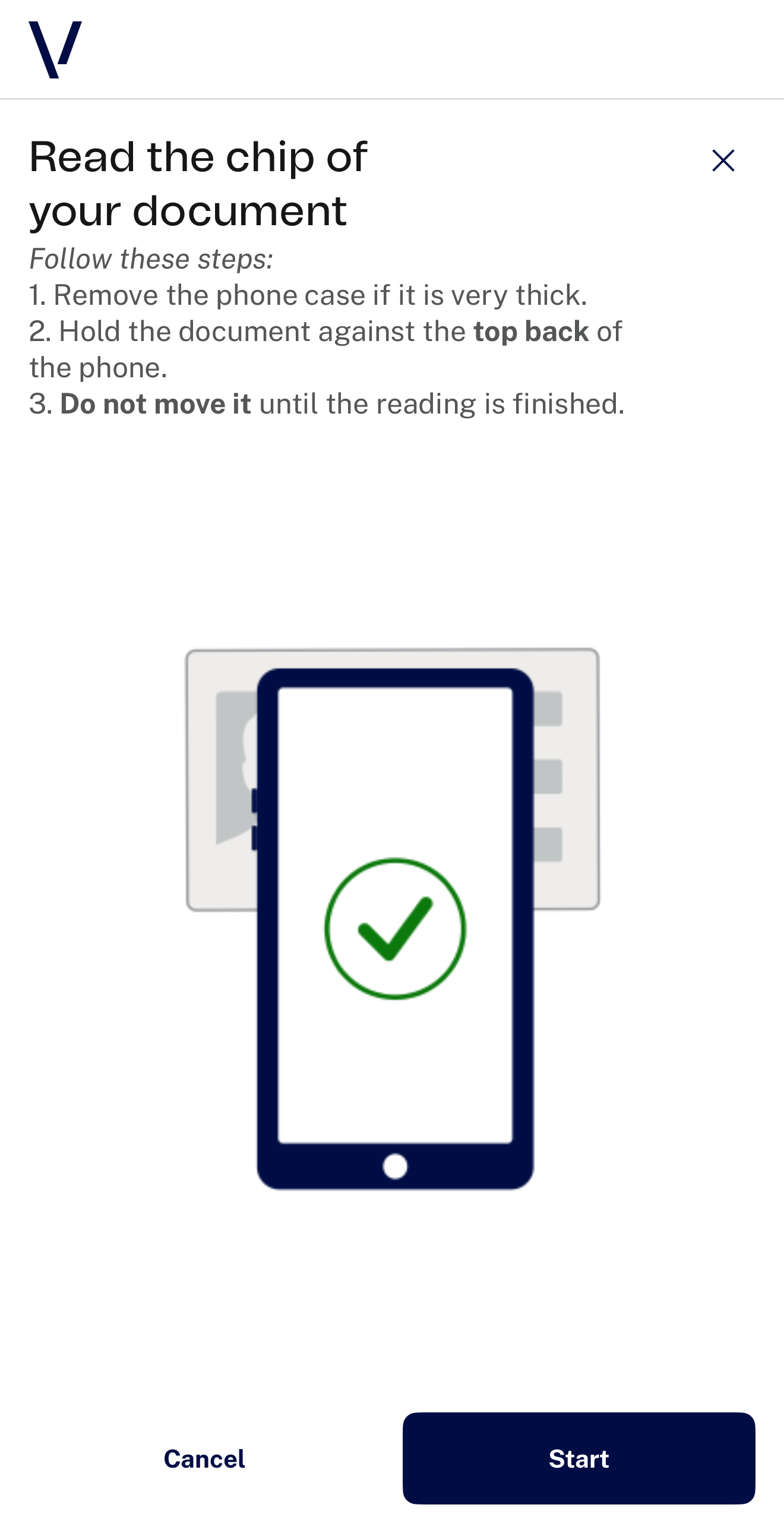 |
Example of the document data form modified:
"texts": {
    "formNoData": {
        "title": "Enter your document data",
        "documentNumber": {
            "label": "Support number",
            "placeholder": "AAA000<<<",
            "helperText": {
                "default": "It has 9 characters.",
                "error": "It must have 9 characters. Include the < symbols if there are any."
            }
        }
    }
}
Recommendations
Titles and Subtitles
- Use short, direct titles that describe the expected action.
✦ Example: “Bring the document closer”, “Enter the data”
- Subtitles can clarify the instruction with additional detail.
✦ Example: “Hold the document against the top back of the phone and do not move it”
- Maintain a clear hierarchy: bold, concise titles + informative subtitles.
- Avoid vague labels like “Step 1” or “Instructions”.
Feedback Messages
- Use feedback to describe progress or confirm the reading.
✦ Example: “Reading document…”, “Reading completed successfully”
- Avoid generic phrases like “Loading…” or “Please wait”.
- Error messages should be clear and constructive, not technical.
✦ Prefer: “Document not detected” over “NFC tag error”
- Tell the user where the NFC antenna is: on iPhone, it is at the top back of the phone.
Readability and Accessibility
- Keep texts concise and left-aligned to support scannability.
- Avoid excessive bold, italics or styling, which can harm legibility.
- Use simple, translatable language for localization.
- Ensure all user-facing texts (titles, subtitles, feedback) work well with screen readers.
Media
The system also provides flexible control over the media content displayed throughout the interface.
Instead of editing media in multiple places, you can configure all images from a centralized section. By modifying just a few media, you can ensure that the entire experience feels cohesive, consistent, and aligned with the expectations of your users.
Below is the full JSON structure containing all the configurable media elements used throughout the interface.
Key |
Screen |
|---|---|
logo |
Header of all screens. If it is not set, logoSmall is used instead. |
logoSmall |
Header of all screens, when logo is not set. |
instructions.mobile |
Instructions screen. |
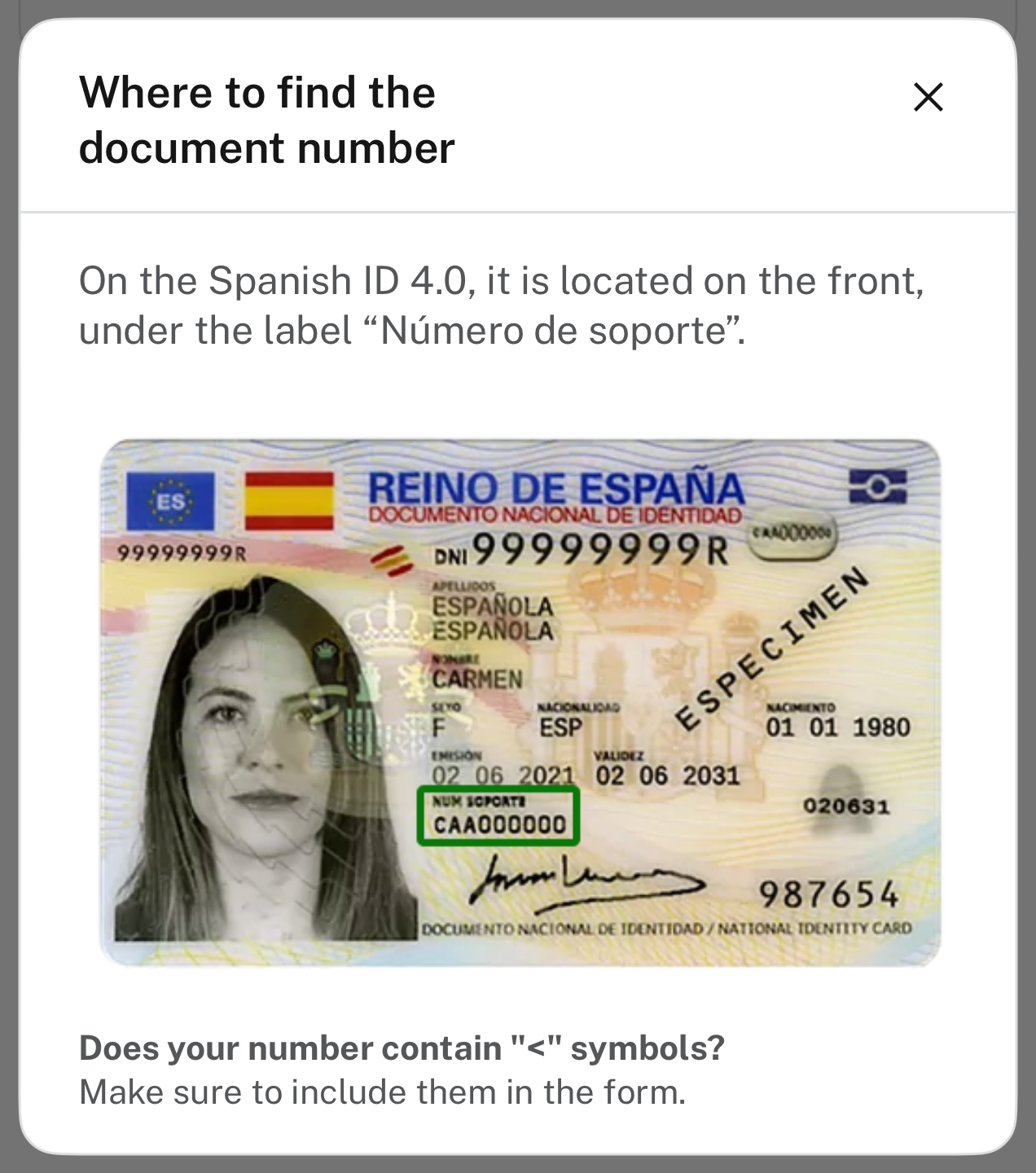
formNoData.findNumberHelp.modal |
"Can't find the number?" help modal, showing where the document number is. |
reading.presentation |
Reading screen, waiting for the document. |
reading.inProgress |
Reading screen, while the chip is read. |
reading.success |
Reading screen, when the reading is completed. |
error.readingFailed |
Feedback screen when the reading is interrupted. |
error.timeout |
Feedback screen when the document is not detected. |
error.readingCanceled |
Feedback screen when the user cancels the system NFC sheet. |
error.unsupportedDocument |
Feedback screen when the document cannot be read by NFC. |
error.focusLoss |
Feedback screen when the process is interrupted because the app went to the background. |
error.verification |
Feedback screen of a generic error. |
Each image has its alternative text in the texts section, under the same path and the mobileMediaAltText key (for example, texts.reading.presentation.mobileMediaAltText). The alternative text of the logo is texts.common.logoAltText.
You are not required to modify the entire structure. The configuration is highly flexible, allowing you to override only the specific media entries you want to customize. If a given key is not explicitly redefined, the SDK will automatically fall back to its default value—ensuring smooth operation even with partial configurations.
This gives you full control over the media without unnecessary complexity, making it easier to maintain consistency and adapt the interface to your product's look and feel.
Example of media configuration:
"medias": {
    "instructions": {
        "mobile": "nfc_instructions.gif"
    },
    "reading": {
        "presentation": "https://domain.com/images/nfc_reading_presentation.gif"
    }
}
Recommendations
Where each image is loaded from
The value of each media entry decides where the SDK loads the image from:
Value |
Loaded from | Supported formats |
|---|---|---|
Name without extension, e.g. "tutorial_screen" |
An image of the app's asset catalog (Assets.xcassets) |
PNG, JPEG, HEIC, PDF, SVG (static) |
Name with extension, e.g. "tutorial_screen.gif" |
A file added to the app bundle, outside the asset catalog | PNG, JPEG, HEIC, GIF, WebP |
URL starting with https:// |
A remote image, downloaded and cached | PNG, JPEG, HEIC, GIF, WebP |
- Animated GIF and WebP images are played. They must be bundle files or remote URLs, because the asset catalog does not accept GIF or WebP.
- SVG is only supported in the asset catalog (enable Preserve Vector Data). SVG files that reuse elements with
<use>may render incomplete, so flatten them before adding them. Remote SVG images are not supported. - Only
httpsURLs are loaded remotely. - If an image can't be found or loaded, a generic placeholder is shown instead.
File format
We recommend modern formats for the best balance of quality and file size:
- Static images: WebP, JPEG or PNG. Use PNG only if you need transparency.
- Animated images: GIF or animated WebP for short, simple animations. Animated WebP files are usually much smaller than the equivalent GIF.
File weight and performance
The larger the file size, the longer it will take to load. Large files can significantly slow down the rendering of your content, especially for users on slower network connections or older devices.
Descriptive and Accessible Visuals
- Prioritize descriptive, instructional visuals
Illustrations and animations should clearly demonstrate the expected user behavior:
✦ Example: Show where to place the document on the back of the phone, and that it must stay still.
- All media should include alternative text for screen readers
Alternative text can be configured directly in the JSON text structure. These descriptions help users with visual impairments understand the context or purpose of the image or animation.
- Make alternative text specific and actionable
✦ Example: “Identity document being placed on the top back of the mobile phone” is more useful than “NFC image”.
- Show the right specimen in the help modal
The default image offormNoData.findNumberHelp.modalshows the Spanish ID 4.0. If your users read other documents, replace it and its texts (texts.formNoData.findNumberHelp.modal) with the document they will use.
- Avoid leaving media without a text fallback
When media is purely visual, ensure it doesn’t carry the sole instructional value. Pair with a textual explanation for redundancy and accessibility.
- Looping animations should not distract
Loop behavior can be helpful when the action needs to be repeated, but it should not cause visual fatigue or interfere with reading other elements on screen.
Style
The system based on design tokens transforms how you customize and manage the interface across your product.
Instead of manually overriding styles in multiple places, you can adjust a centralized set of tokens that control key visual properties such as colors, typography, and more. By updating just a few parameters, you can apply consistent branding across all components and views.
This not only helps ensure visual consistency and accessibility, but also reduces the effort and time required for implementation and future maintenance. Design tokens act as a single source of truth for your UI’s appearance, making the customization process more scalable, predictable, and easier to maintain over time.
The styles are shared with the rest of the Veridas iOS SDKs, so the same styles section can be reused across all of them.
Below is the full JSON structure containing all the configurable styles used throughout the interface.
You are not required to modify the entire structure.
Three Levels of Customization
The customization system is structured in three progressive levels:
1. Theme Level (Global)
Apply your brand’s visual identity across the interface by adjusting a centralized set of tokens:
- Brand colors (primary and secondary)
- Typography (primary and secondary font families)
This is the recommended starting point for fast, system-wide consistency.
2. Component Level
Override the appearance of specific UI elements without affecting the rest of the system:
- Header
- Buttons (primary, secondary, tertiary, icon)
- Spinner
- Modals
- Calendar
Control design tokens such as colors, borders, and icon styles at the component level.
3. Interactive States
Define how components behave visually in response to user actions, such as pressed states. Customize:
- Backgrounds
- Icon and text colors
- Border styles
This level provides precision over interactive behavior and reinforces a consistent experience.
Recommendations
Add Custom Fonts to the iOS Project
The integrating iOS application must include the custom fonts in its Info.plist file.
Example:
<key>UIAppFonts</key>
<array>
    <string>Fonts/FONTFILE_NAME1.ttf</string>
    <string>Fonts/FONTFILE_NAME2.otf</string>
</array>
⚠️ Make sure that the font files are correctly placed inside your Xcode project and included in the app bundle.
Colors
brandPrimaryColor
Represents your main brand color, used in primary buttons and highlights.
brandSecondaryColor
Typically used in secondary buttons and accent elements. Choose a color that complements your primary brand tone.
darkTextColor
Used for primary text (titles, subtitles, body content).
Given that the SDK background is white, this value should always be a dark tone to ensure proper contrast. Avoid using light or low-contrast colors here.
Accessibility and Contrast
- The default theme already meets WCAG 2.2 contrast standards for accessibility.
- When modifying colors—especially
darkTextColor,brandPrimaryColor, or background tones—it is the integrator’s responsibility to validate the contrast ratios.
- We recommend using online contrast checker tools such as:
Theme Level
The first level of configuration, known as the theme level, allows you to personalize the interface by adjusting just a few key parameters related to colors and fonts.
Using the styles.theme configuration, you can define the following core design tokens:
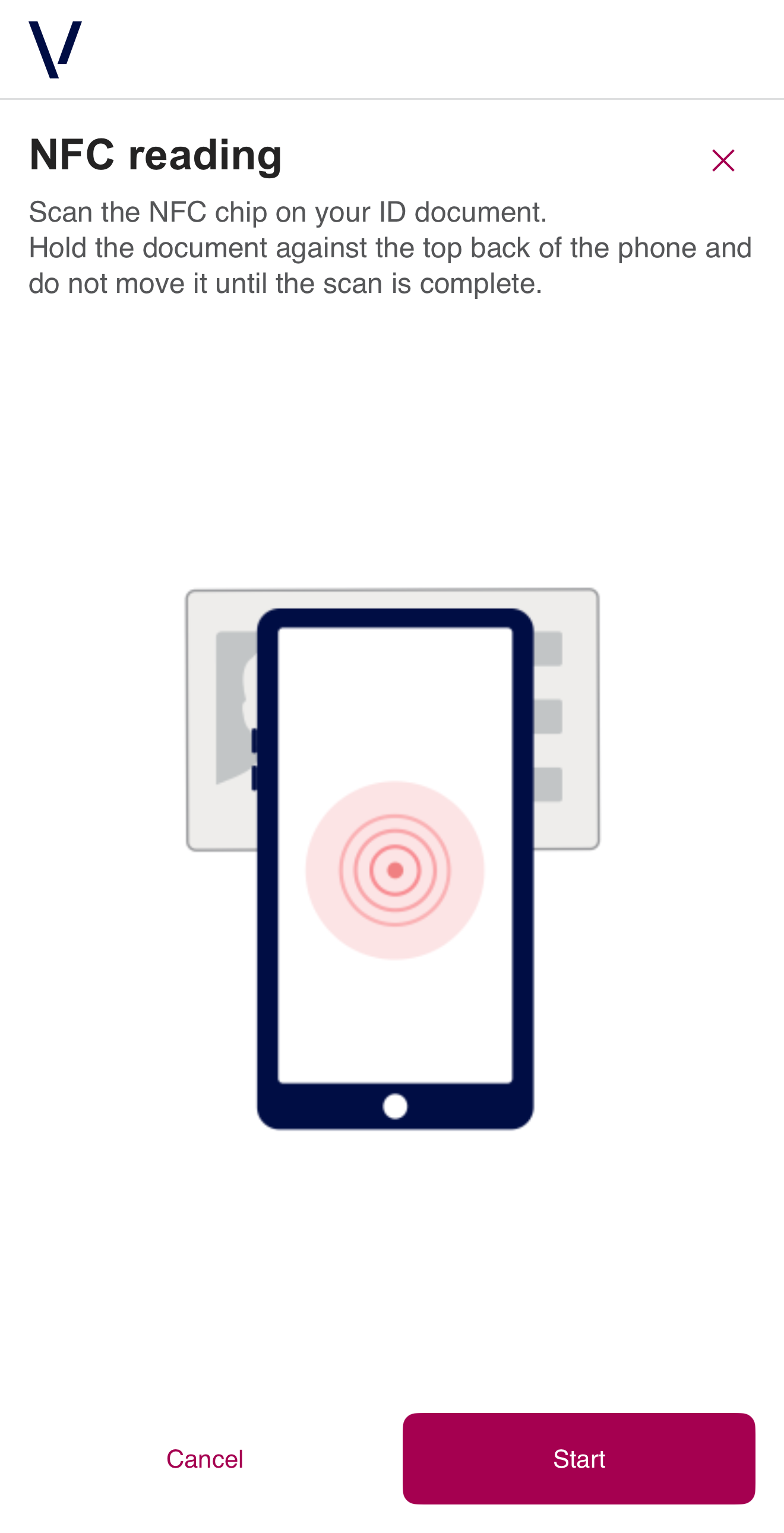
darkTextColor– Main color used for high-contrast text.brandPrimaryColor– Main brand color used across the UI for primary actions and highlights.brandSecondaryColor– Secondary brand color used for accenting and complementary elements.font.familyPrimary– The primary typeface used throughout the interface.font.familySecondary– A secondary typeface for alternative or stylistic uses.
IMPORTANT
- Any changes made to these values will have a global impact on the appearance of components across the system.
- It's important to validate your customizations carefully to ensure they maintain a consistent and accessible user experience.
This approach provides a fast and efficient way to align the interface with your brand identity without needing to adjust individual components.
Applies to
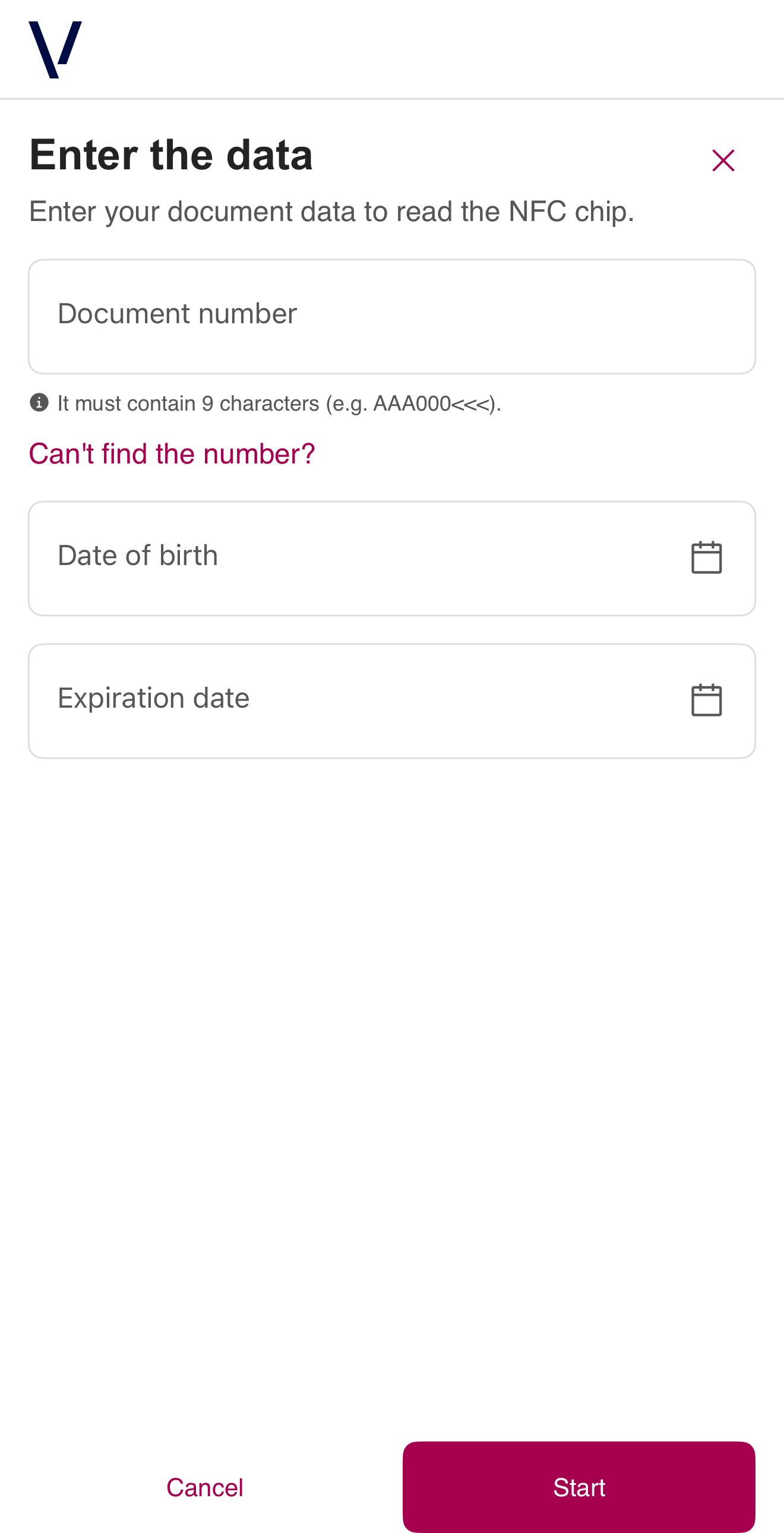
darkTextColor: Titles, subtitles, form labels, helper texts and icons.brandPrimaryColor: Loading spinner, background color of primary buttons, color text of secondary buttons, close button color, selected day in the calendar.brandSecondaryColor: background color of secondary buttons.font.familyPrimary: Titles.font.familySecondary: Subtitles, buttons, form fields and helper texts.
The system NFC sheet is drawn by iOS, so it is not affected by the styles.
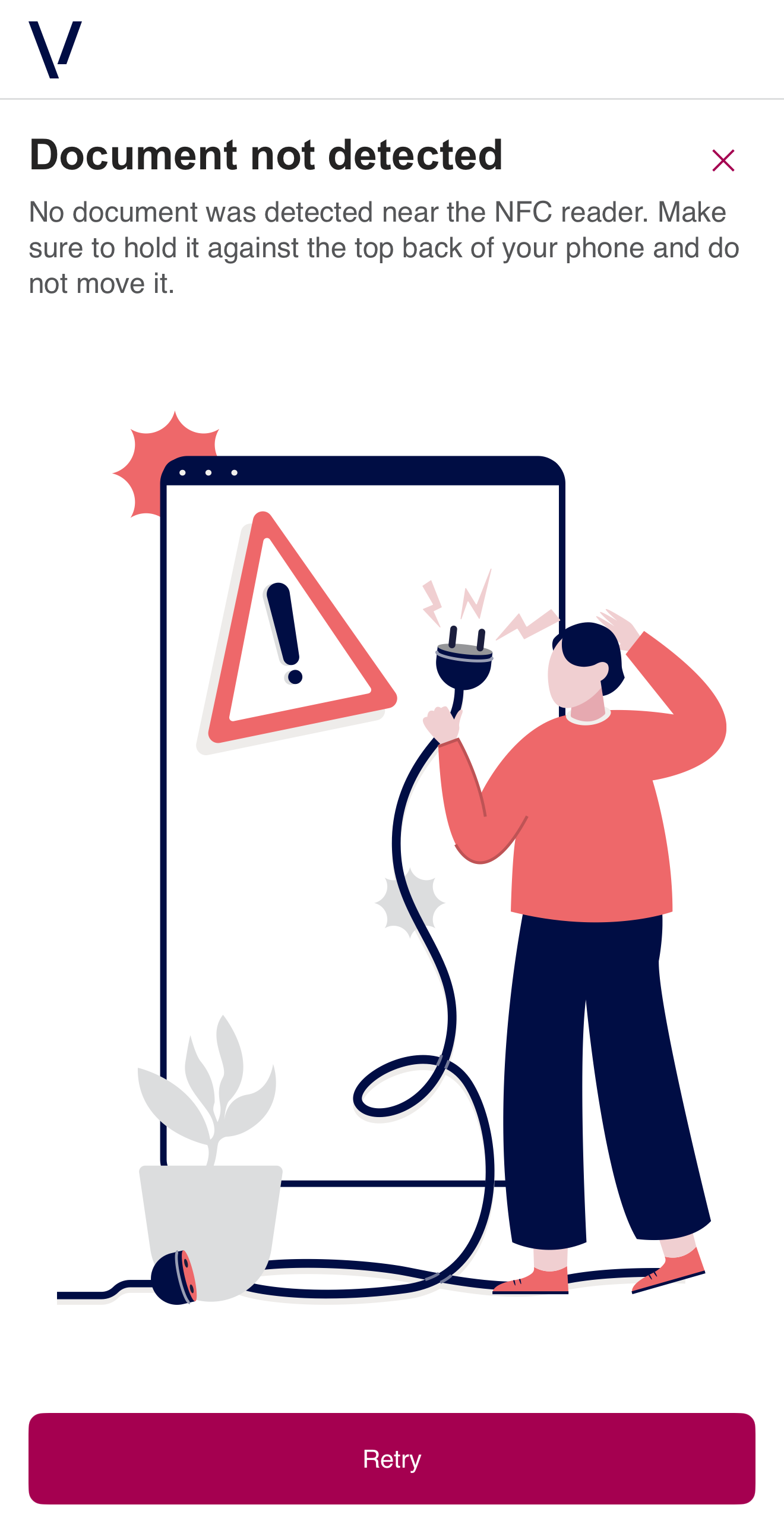
Here is an example of how to update the parameters mentioned above.
"styles": {
    "theme": {
        "darkTextColor": "#242323",
        "brandPrimaryColor": "#A50050",
        "brandSecondaryColor": "#E5D0DA",
        "font": {
            "familyPrimary": "Arial",
            "familySecondary": "Open Sans"
        }
    }
}
Mobile
| Default Customization | After Customization | |
|---|---|---|
| Instructions | 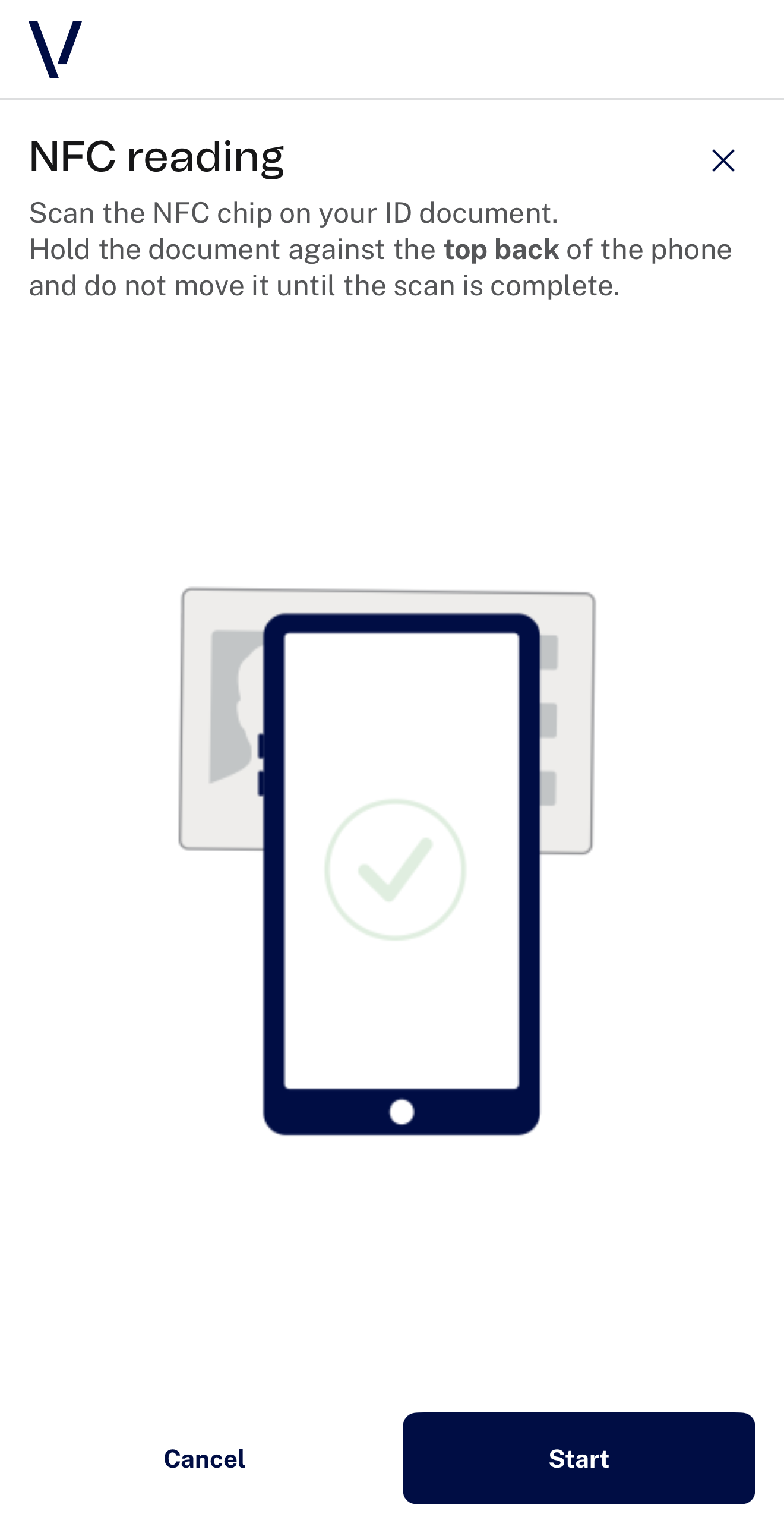 |
 |
| Document data form | 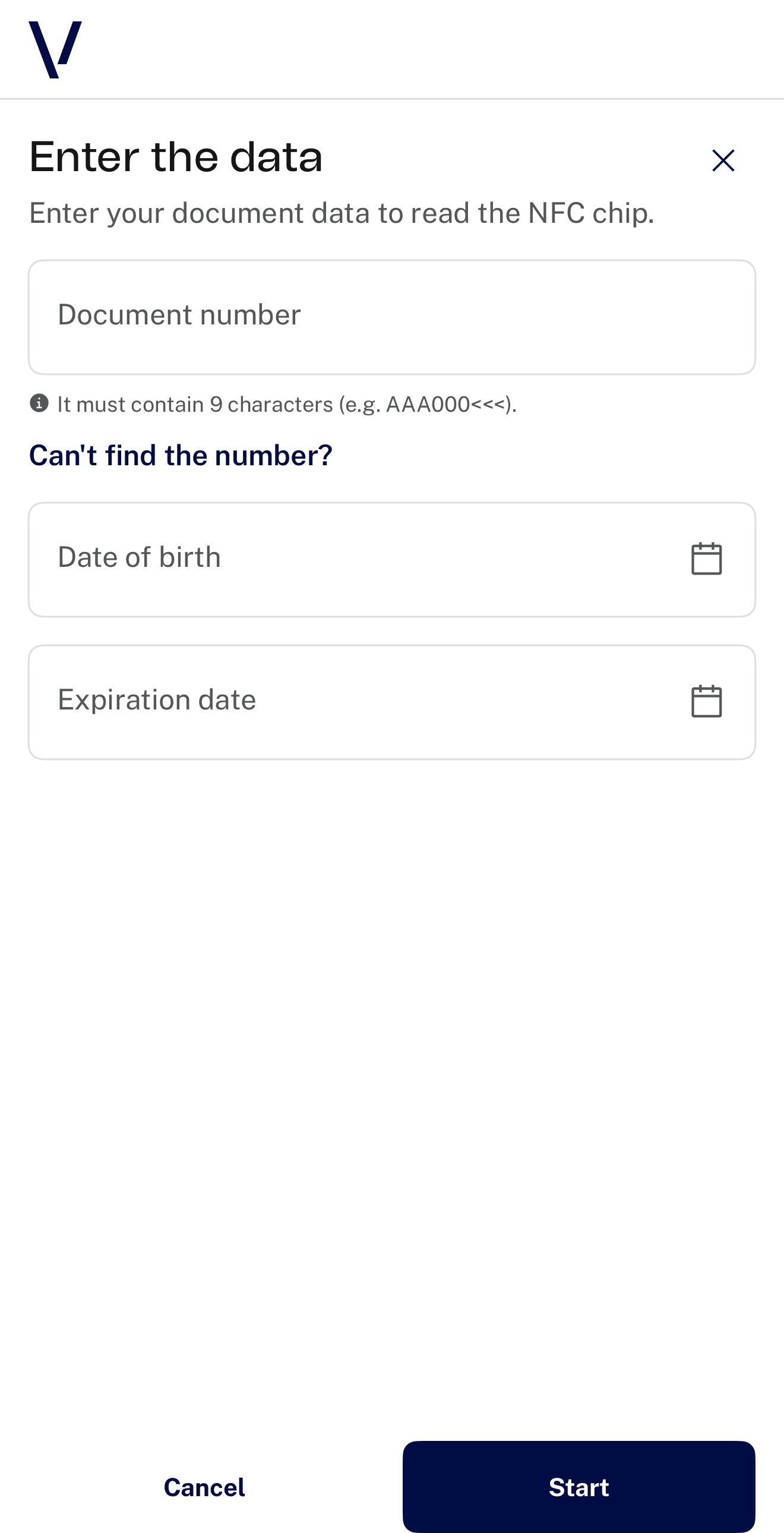 |
 |
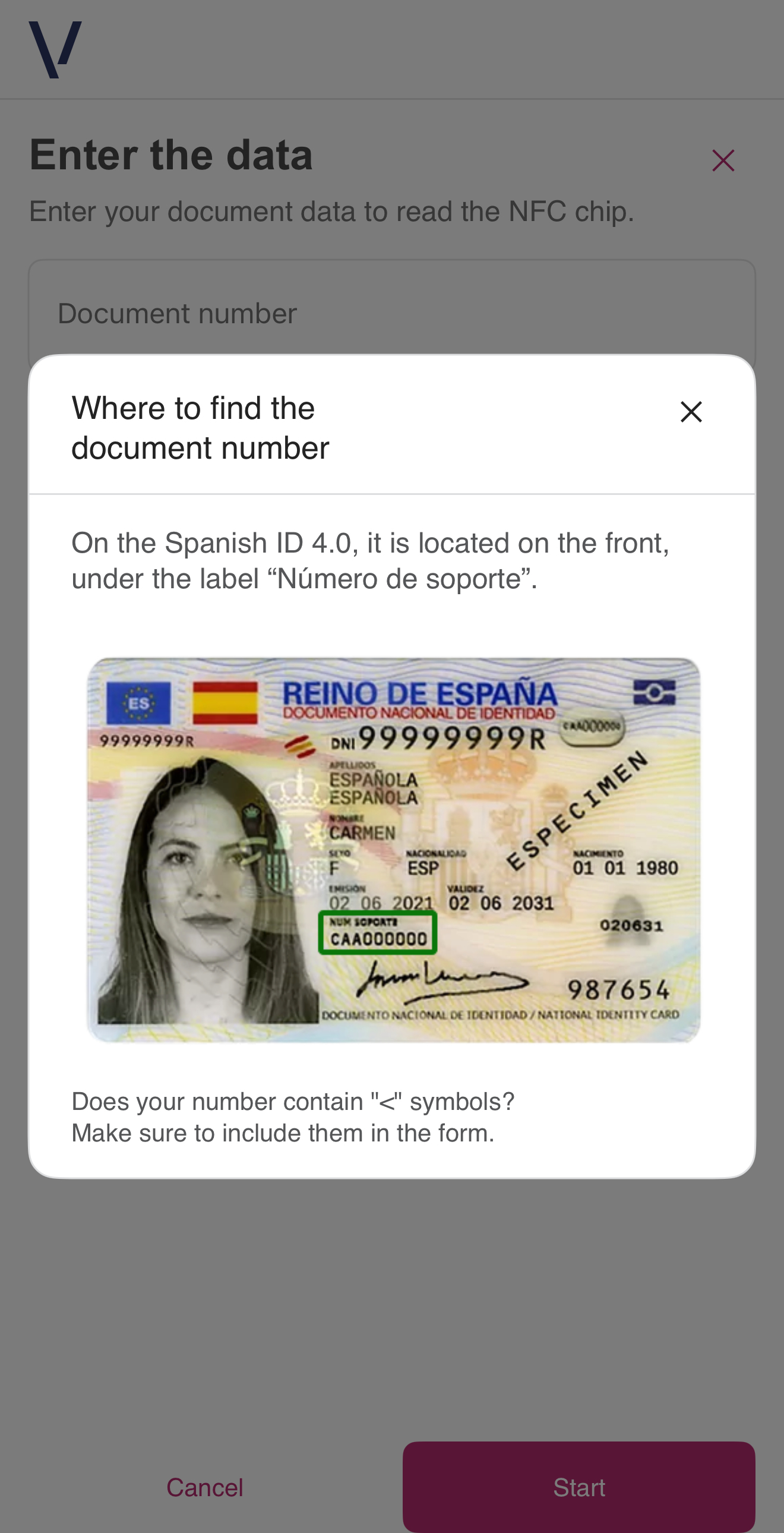
| Document data form (help modal) | 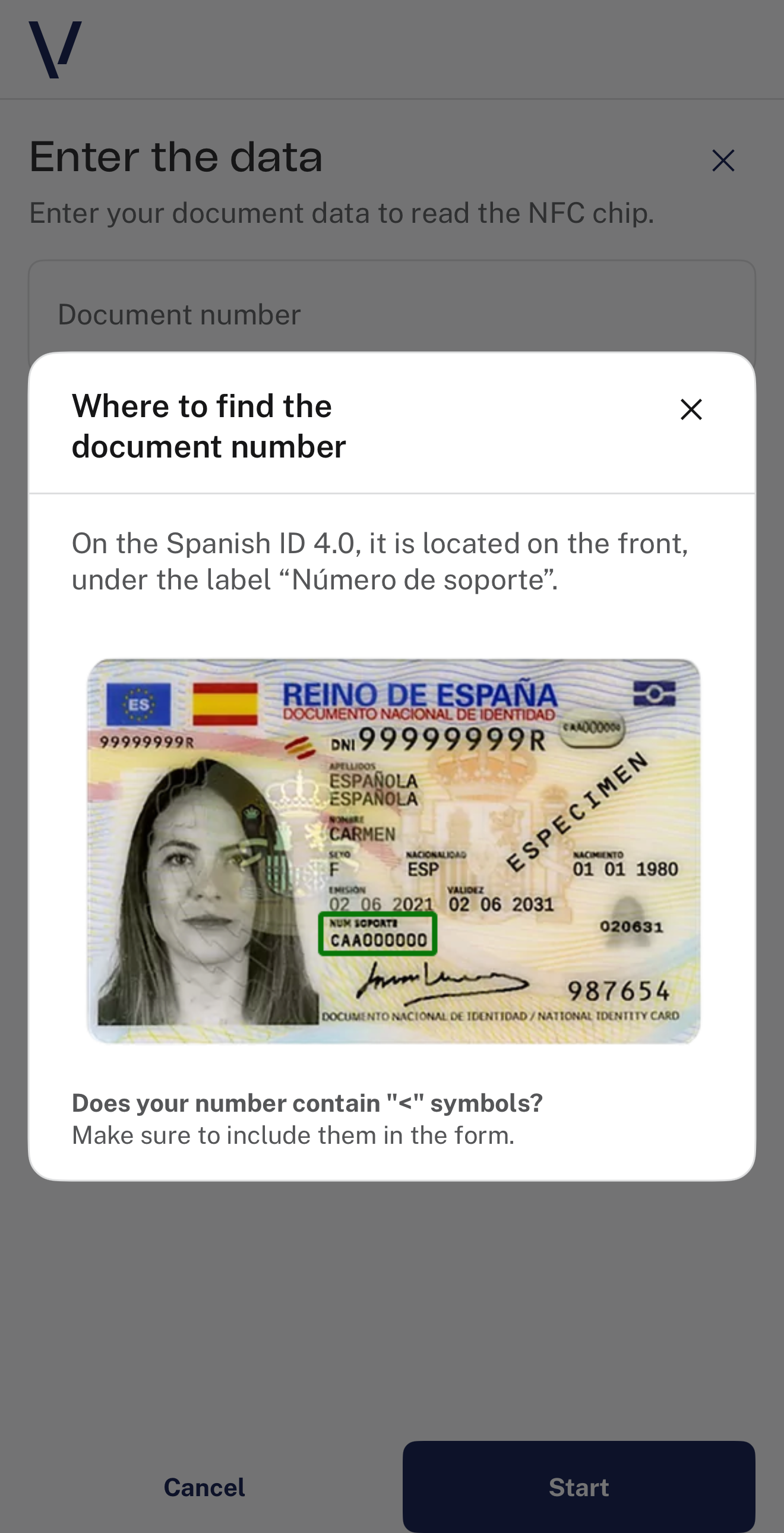 |
 |
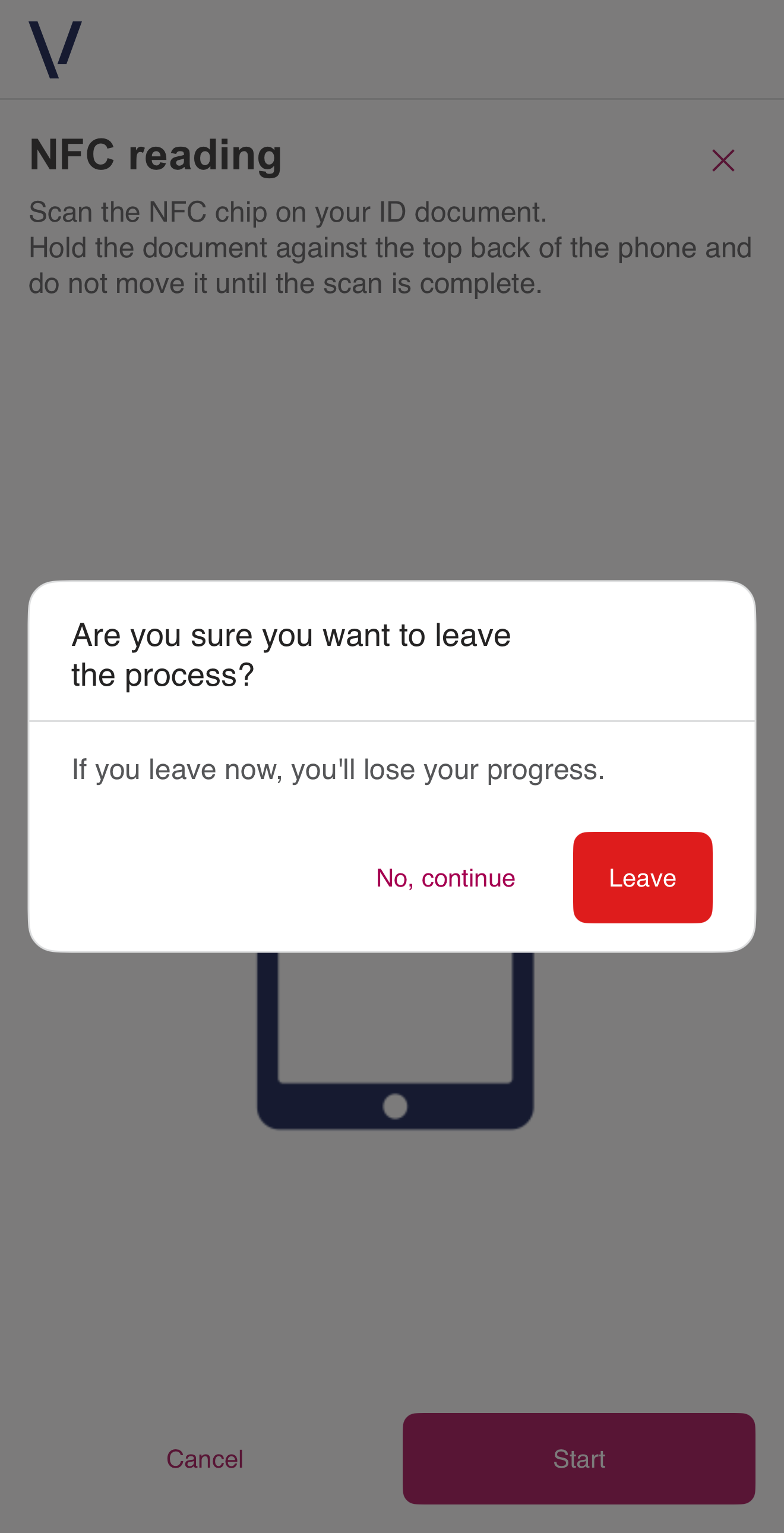
| Exit confirmation modal (apply all screens) | 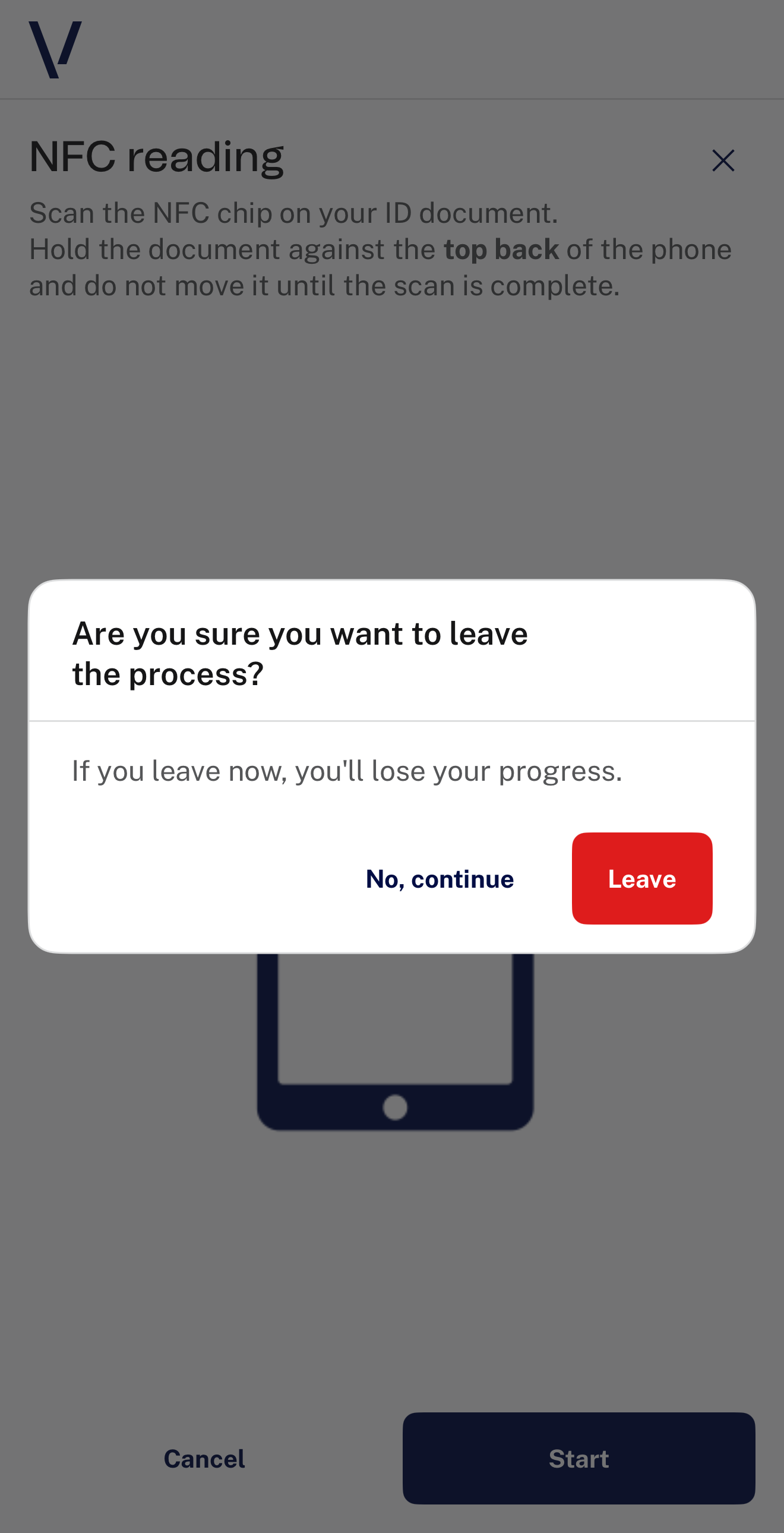 |
 |
| Feedback | 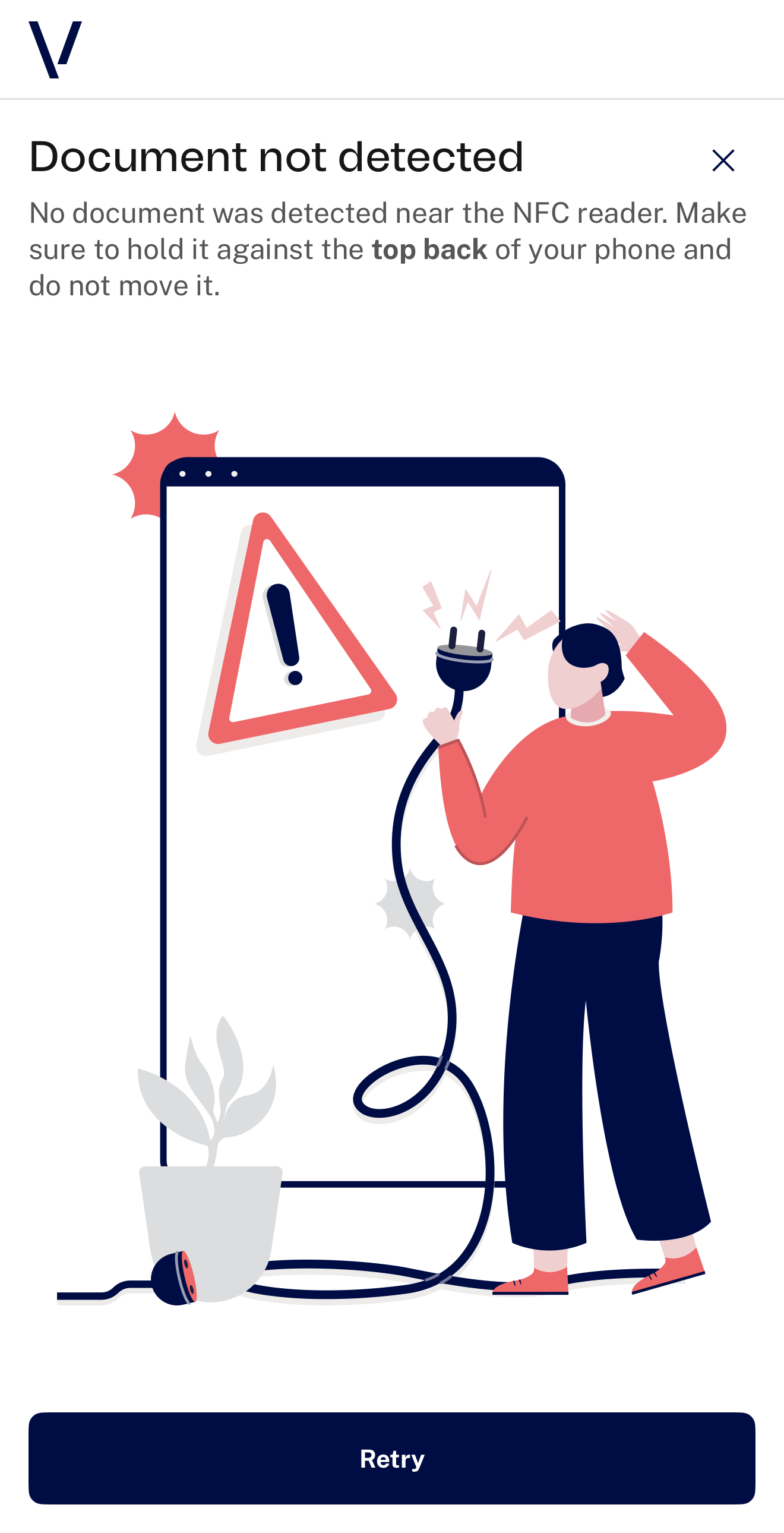 |
 |
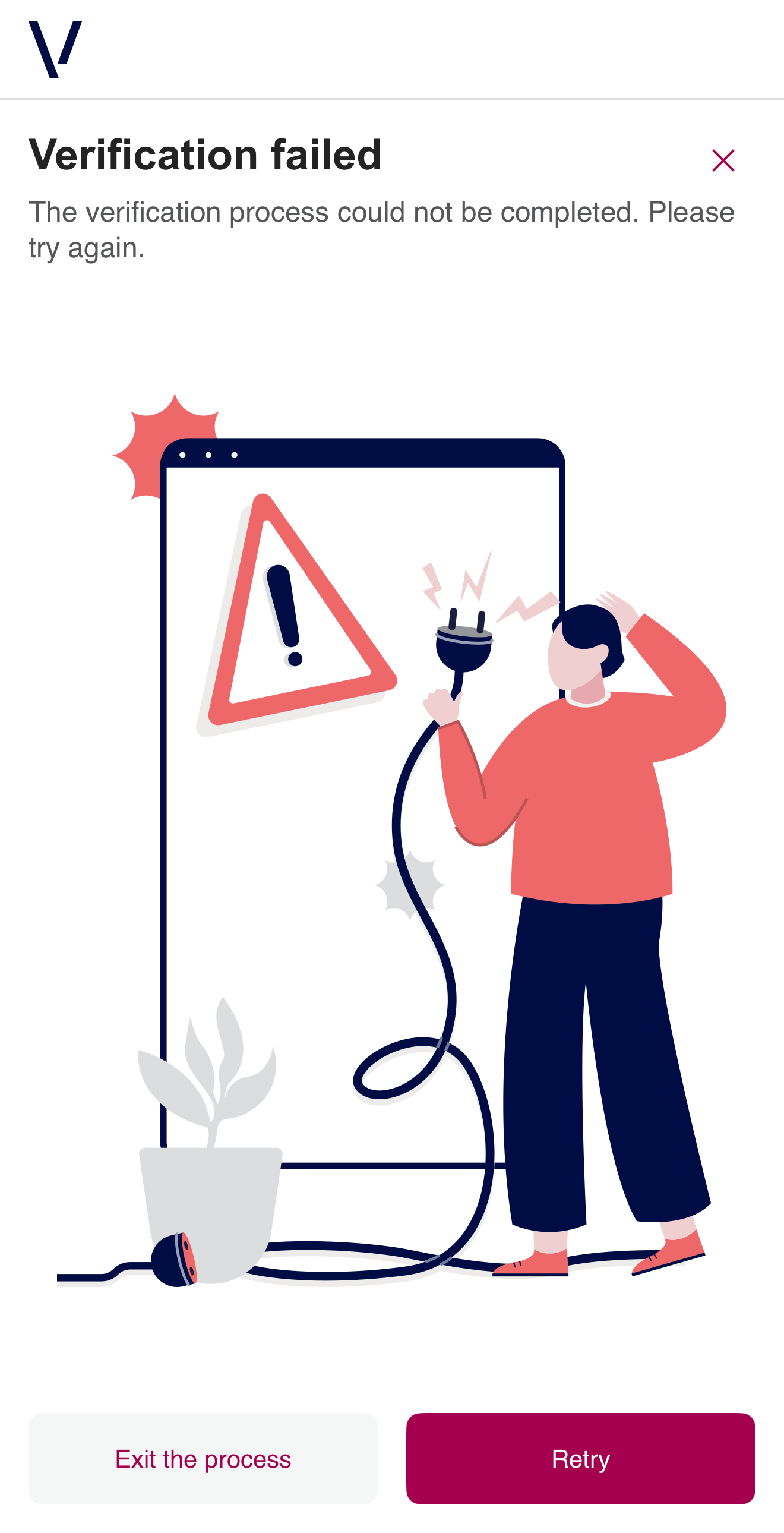
| Feedback (generic error) | 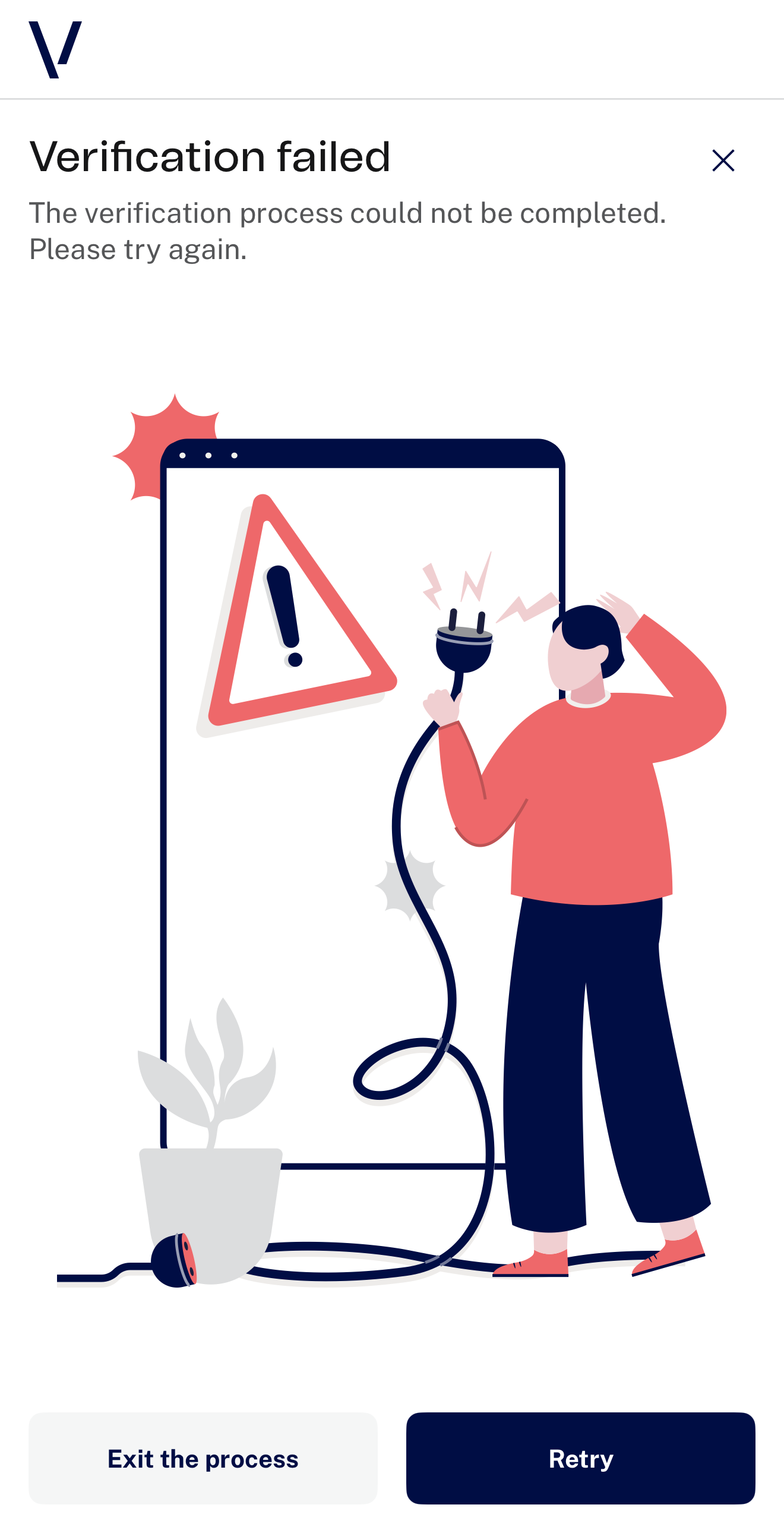 |
 |
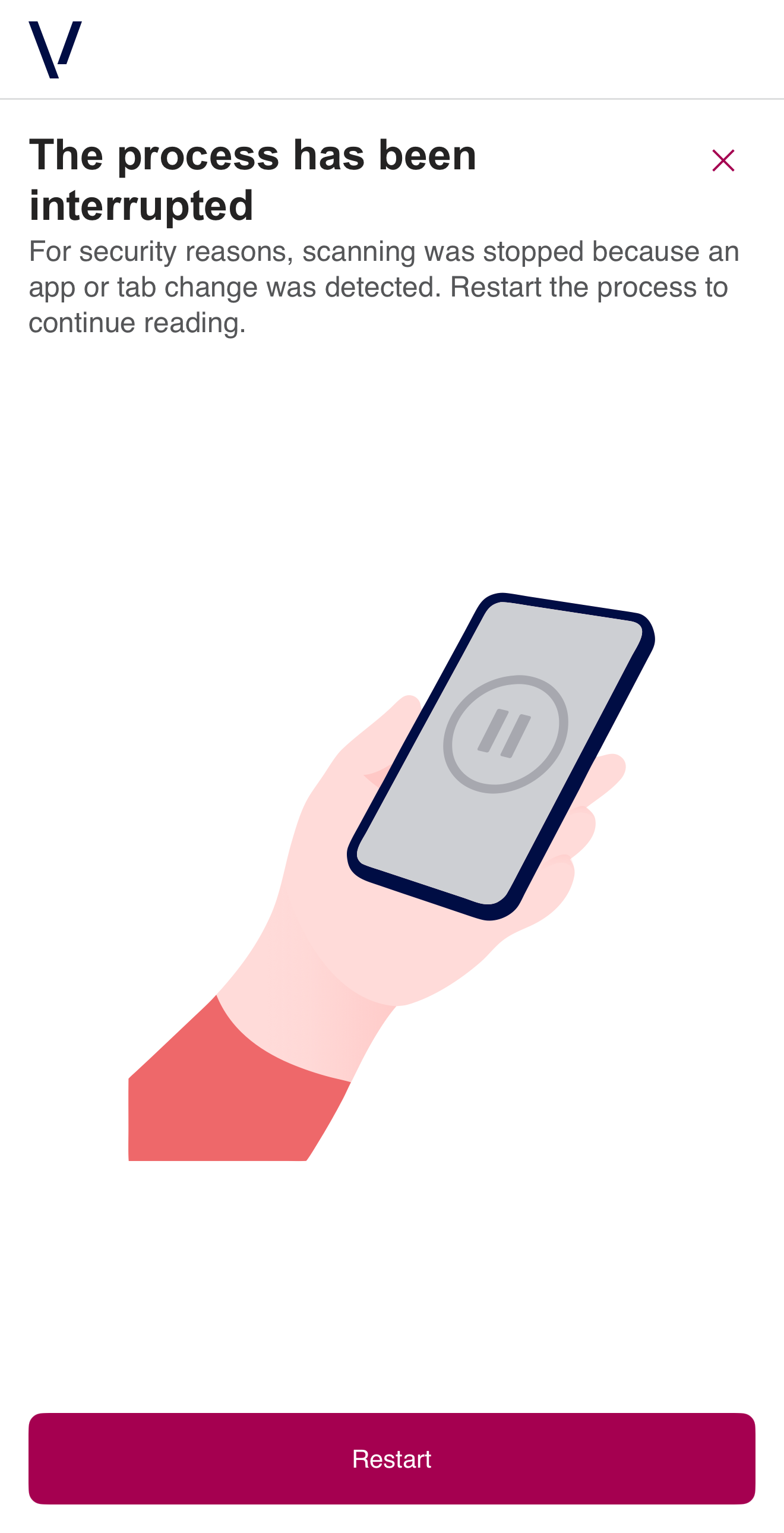
| Feedback (focus loss) | 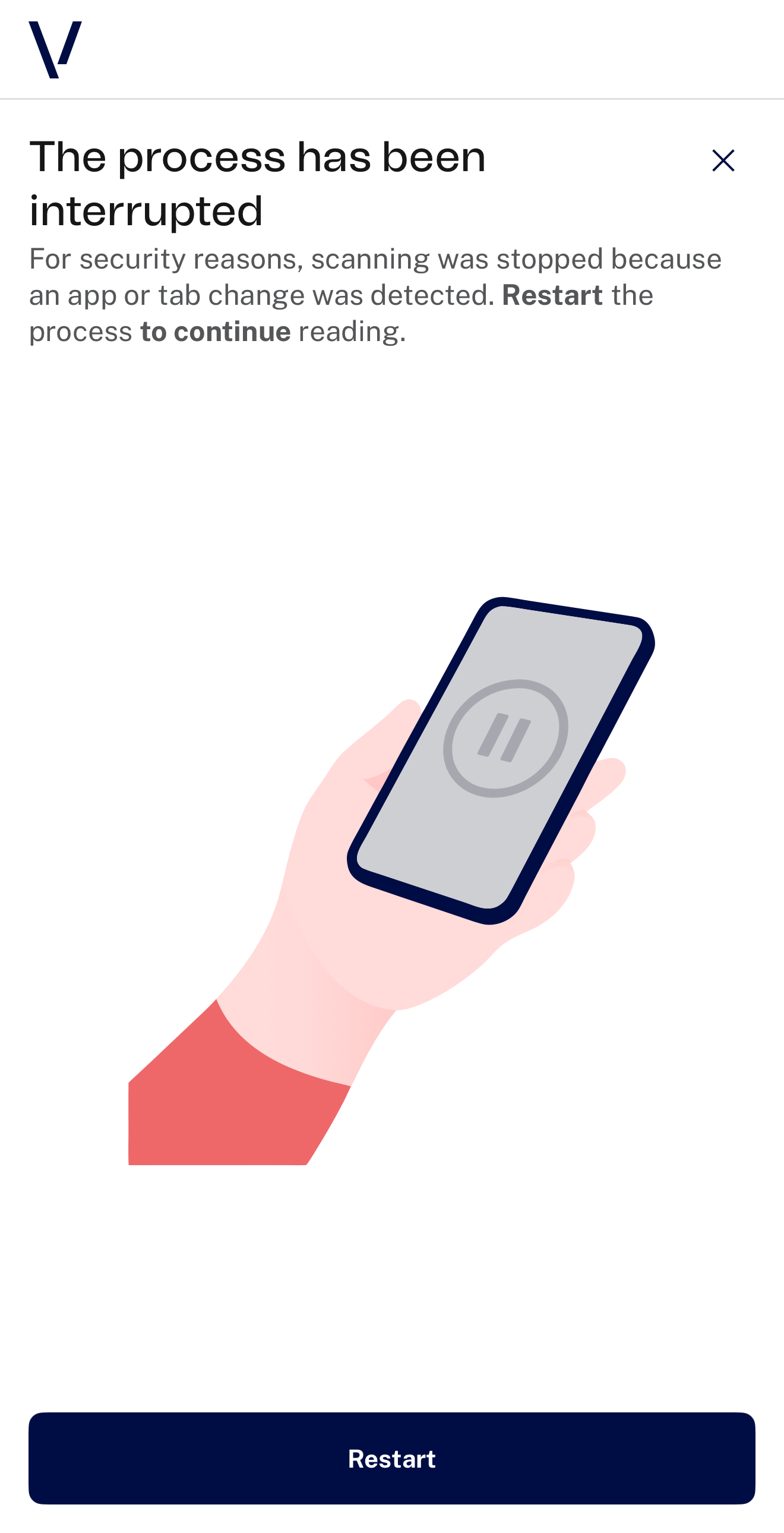 |
 |
Component Level
While the theme level offers a fast way to globally apply brand identity, sometimes finer control is needed.
That’s where the component-level customization comes in.
This second level allows you to override the styles of specific components in the interface.
Using the styles.components configuration, you can target individual UI elements—such as buttons, icon buttons, spinner, modals, calendar or header—and adjust their appearance more precisely.
You can define properties like colors, borders, icons, and more for each component.
This provides the flexibility to go beyond global themes and fine-tune the user experience in specific screens or use cases, always maintaining visual coherence with the broader design system.
IMPORTANT
- Keep in mind that when you modify a component, the changes will apply across all views where that component is used.
- For example, if you change the colors of the primary button, the update will reflect in every view where that button appears. It’s not possible to modify a single instance — all buttons using that parameter will be affected.
In the following section, you'll find a list of customizable components, along with the available parameters and the screens where they are applied.
Header
The Header is a key visual and structural element within the interface.
It appears at the top of the screen and contains the logo.
The logo can be customised using the medias.logo and medias.logoSmall options in the configuration.
| Screen | Mobile |
|---|---|
| Header |  |
As explained in the configuration section, it is possible to remove the logo from the interface by adjusting the appropriate parameter.
When the logo is disabled, the entire header component will be hidden from the view.
If your integration does not require a logo or you prefer a more minimal interface, disabling the header can help simplify the visual layout.
Applies to
| Screen | Mobile |
|---|---|
| Instructions | |
| Document data form | |
| Reading | 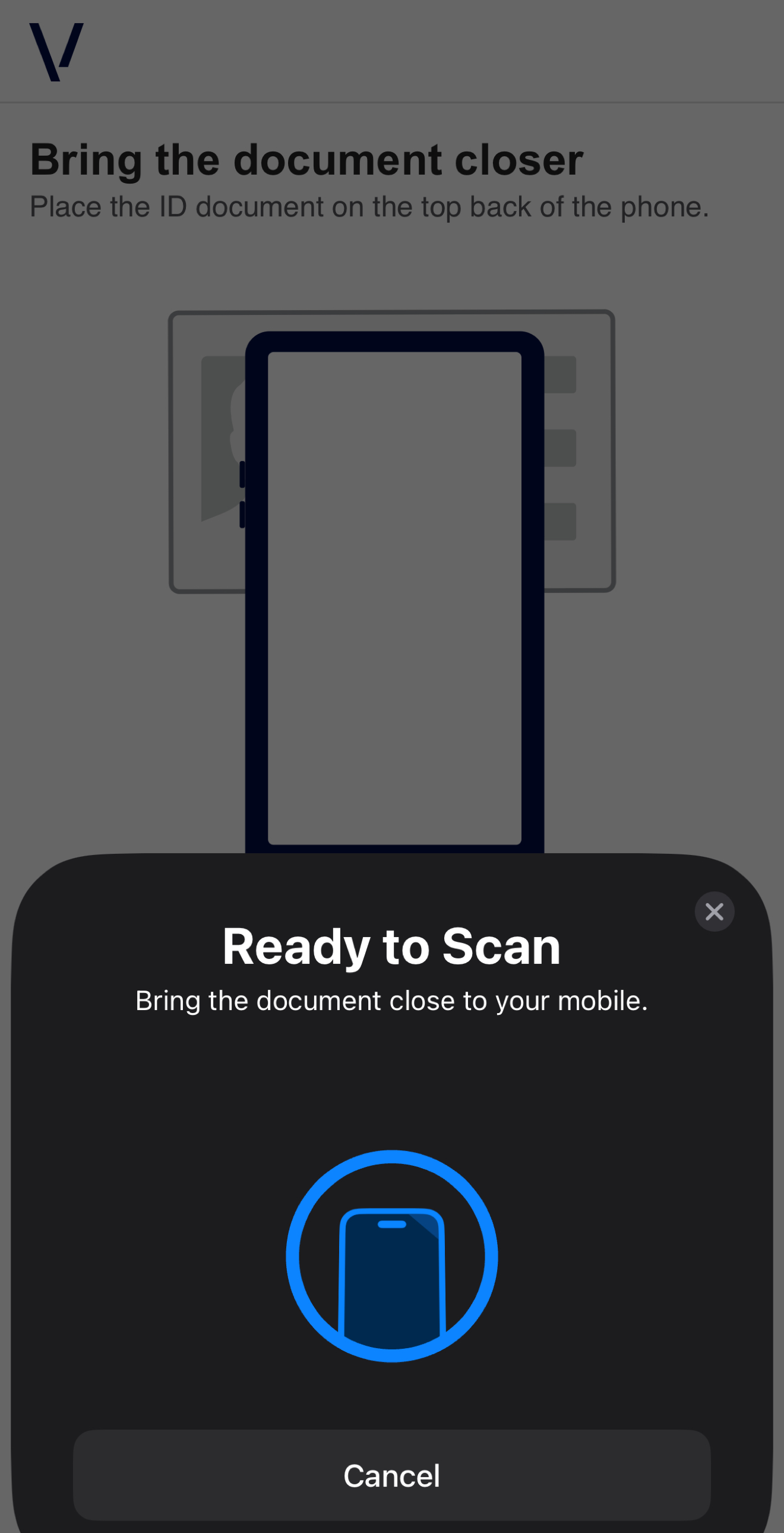 |
| Feedback | |
| Feedback (generic error) | |
| Feedback (focus loss) | |
| Parameter | Description |
|---|---|
| borderColor | Border color |
| borderWidth | Border width |
| backgroundColor | Background color |
Example of header modified:
"styles": {
    "components": {
        "header": {
            "backgroundColor": "#E5D0DA",
            "borderColor": "#A50050",
            "borderWidth": "15"
        }
    }
}

Button
General
Applies to
All buttons
The button component allows for detailed visual customization to better match your brand identity and UI style. You can configure the following aspects individually:
- Background color
- Border color
- Border width
- Text (label) color
- Border radius
Within the product, the following button types are supported:
- Primary button – used for main actions
- Secondary button – used for complementary actions
- Tertiary button – used for cancel or exit actions
- Icon button – used for actions represented by an icon (e.g., closing)
Each type has its own set of customizable properties, allowing you to adjust the appearance of each variant independently. However, the borderRadius property is shared across all button types. This means that by changing it once, the same corner rounding will apply to primary, secondary, and tertiary buttons.
For example, if your product design uses a flatter style, setting the borderRadius to 0 will make all buttons appear more rectangular. On the other hand, increasing this value will result in a more rounded appearance across the interface.
This flexibility lets you fine-tune the visual feel of the interface while maintaining consistency across all interactive elements.
Keep in mind that when you modify the button, the changes will apply across all views where it is used
Primary Button
This is the button used for main actions, related to starting, continuing or retrying the process.

Applies to
| Screen | Mobile |
|---|---|
| Instructions | |
| Document data form | |
| Document data form (calendar) | 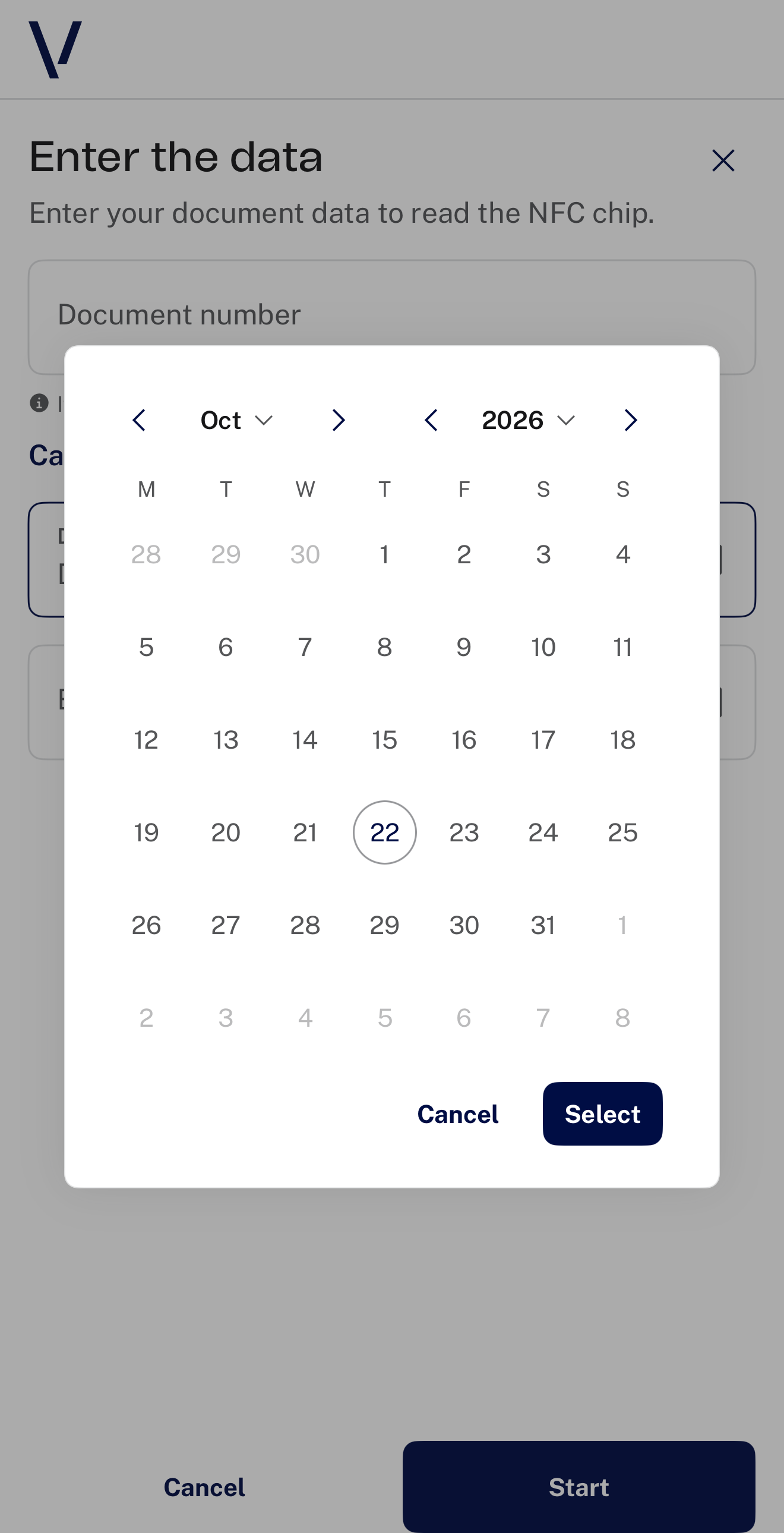 |
| Feedback | |
| Feedback (generic error) | |
| Feedback (focus loss) | |
These properties allow you to fine-tune its appearance and behavior to better align with your brand and user experience needs.
Below is a comprehensive list of all the properties that can be customized for the button component.
| Parameter | Description |
|---|---|
| backgroundColorPrimary | Background color |
| labelColorPrimary | Label color (text) |
| borderColorPrimary | Border color |
| borderWidthPrimary | Border width |
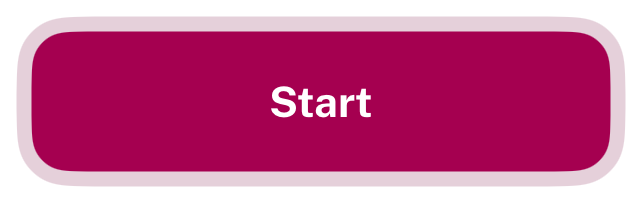
Example of primary button modified:
"styles": {
    "components": {
        "button": {
            "backgroundColorPrimary": "#A50050",
            "labelColorPrimary": "#FFFFFF",
            "borderColorPrimary": "#E5D0DA",
            "borderWidthPrimary": "5",
            "borderRadius": "15"
        }
    }
}
Secondary Button
This button is for secondary actions, such as leaving the process.

Applies to
| Screen | Mobile |
|---|---|
| Feedback (generic error) | |
These properties allow you to fine-tune its appearance and behavior to better align with your brand and user experience needs.
Below is a comprehensive list of all the properties that can be customized for the button component.
| Parameter | Description |
|---|---|
| backgroundColorSecondary | Background color |
| labelColorSecondary | Label color (text) |
| borderColorSecondary | Border color |
| borderWidthSecondary | Border width |
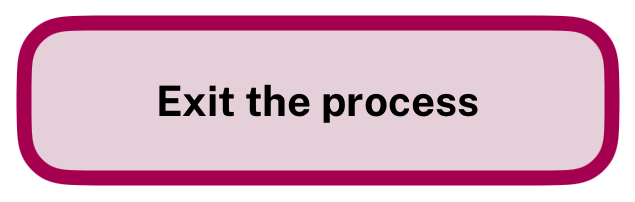
Example of secondary button modified:
"styles": {
    "components": {
        "button": {
            "backgroundColorSecondary": "#E5D0DA",
            "labelColorSecondary": "#000000",
            "borderColorSecondary": "#A50050",
            "borderWidthSecondary": "5",
            "borderRadius": "15"
        }
    }
}
Tertiary Button
This button is for exit actions, like canceling the process.

Applies to
Screen |
Mobile |
|---|---|
| Instructions | |
| Document data form | |
| Document data form (calendar) | |
| Exit confirmation modal (apply all screens) | |
These properties allow you to fine-tune its appearance and behavior to better align with your brand and user experience needs.
Below is a comprehensive list of all the properties that can be customized for the button component.
| Parameter | Description |
|---|---|
| backgroundColorTertiary | Background color |
| labelColorTertiary | Label color (text) |
| iconColorTertiary | Icon color |
| borderColorTertiary | Border color |
| borderWidthTertiary | Border width |
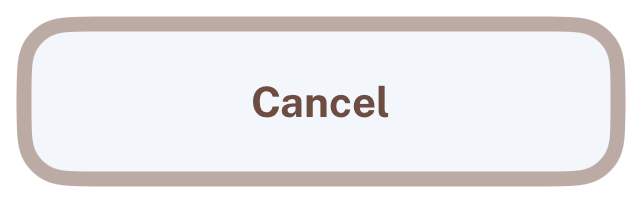
Example of tertiary button modified:
"styles": {
    "components": {
        "button": {
            "backgroundColorTertiary": "#F3F6FB",
            "iconColorTertiary": "#6D4C41",
            "labelColorTertiary": "#6D4C41",
            "borderColorTertiary": "#BCAAA4",
            "borderWidthTertiary": "5",
            "borderRadius": "15"
        }
    }
}
Interactive states
Applies to
Screen |
Mobile |
|---|---|
| Instructions | |
| Document data form | |
| Feedback | |
| Feedback (generic error) | |
| Feedback (focus loss) | |
| Document data form (calendar) | |
| Exit confirmation modal (apply all screens) | |
The SDK allows you to customize the interactive states of buttons—such as the pressed state—through a set of general-purpose color overlay parameters:
| Parameter | Description |
|---|---|
| colorDefaultHover | Hover color |
| colorDefaultPressed | Pressed color |
| colorInverseHover | Hover color inverse |
| colorInversePressed | Pressed color inverse |
These parameters apply a semi-transparent color layer over the button's base style during interaction. This is useful for creating subtle feedback without redefining the full component style.
Default behavior
Primary buttons use a light semi-transparent overlay on top of their background.
Secondary and icon buttons use a dark overlay to create a stronger contrast on interaction.
This approach offers a quick and effective way to visually distinguish interactive states with minimal configuration effort.
When to use these parameters
Use the colorDefault and colorInverse values when:
- You want to maintain the button’s base appearance.
- You just need a consistent visual cue (e.g., a light/dark tint when pressed).
- You prefer not to modify background, text, or borders individually.
When to use specific parameters instead
If you want full control over the button’s appearance during interactive states (e.g., change text color, background color, borders, etc.), you should use the dedicated interaction parameters available for each button type:
- backgroundColorPrimaryHover, labelColorPrimaryPressed, etc.
- These allow granular changes to every visual aspect of the button.
This distinction gives you the flexibility to:
- Apply a fast, unified effect across buttons using overlay colors, or
- Create custom interaction styles on a per-component basis when needed.
Below is a comprehensive list of all the properties that can be customized for the button component.
| Parameter | Description |
|---|---|
| backgroundColorPrimaryHover | Background color when hovered |
| backgroundColorPrimaryPressed | Background color when pressed |
| labelColorPrimaryHover | Label color (text) when hovered |
| labelColorPrimaryPressed | Label color (text) when pressed |
| borderColorPrimaryHover | Border color when hovered |
| borderColorPrimaryPressed | Border color when pressed |
| borderWidthPrimaryHover | Border width when hovered |
| borderWidthPrimaryPressed | Border width when pressed |
| backgroundColorSecondaryHover | Background color when hovered |
| backgroundColorSecondaryPressed | Background color when pressed |
| labelColorSecondaryHover | Label color (text) when hovered |
| labelColorSecondaryPressed | Label color (text) when pressed |
| borderColorSecondaryHover | Border color when hovered |
| borderColorSecondaryPressed | Border color when pressed |
| borderWidthSecondaryHover | Border width when hovered |
| borderWidthSecondaryPressed | Border width when pressed |
| backgroundColorTertiaryHover | Background color when hovered |
| backgroundColorTertiaryPressed | Background color when pressed |
| iconColorTertiaryHover | Icon color when hovered |
| iconColorTertiaryPressed | Icon color when pressed |
| labelColorTertiaryHover | Label color (text) when hovered |
| labelColorTertiaryPressed | Label color (text) when pressed |
| borderColorTertiaryHover | Border color when hovered |
| borderColorTertiaryPressed | Border color when pressed |
| borderWidthTertiaryHover | Border width when hovered |
| borderWidthTertiaryPressed | Border width when pressed |
Example of the interactive states of the button modified:
"styles": {
    "components": {
        "button": {
            "colorDefaultHover":"#e69da9",
            "colorDefaultPressed":"#a8641c",
            "colorInverseHover":"#b55ef0",
            "colorInversePressed":"#b1f6e3",
            "interactiveStates": {
                "backgroundColorPrimaryHover": "#F0E0F0",
                "backgroundColorPrimaryPressed": "#D0B0D0",
                "labelColorPrimaryHover": "#222222",
                "labelColorPrimaryPressed": "#111111",
                "borderColorPrimaryHover": "#A50050",
                "borderColorPrimaryPressed": "#800030",
                "borderWidthPrimaryHover": "3",
                "borderWidthPrimaryPressed": "4",
                "backgroundColorSecondaryHover": "#E0F0E0",
                "backgroundColorSecondaryPressed": "#B0D0B0",
                "labelColorSecondaryHover": "#222222",
                "labelColorSecondaryPressed": "#111111",
                "borderColorSecondaryHover": "#0050A5",
                "borderColorSecondaryPressed": "#003080",
                "borderWidthSecondaryHover": "3",
                "borderWidthSecondaryPressed": "4",
                "backgroundColorTertiaryHover": "#F8BBD0",
                "backgroundColorTertiaryPressed": "#C2185B",
                "iconColorTertiaryHover": "#C2185B",
                "iconColorTertiaryPressed": "#F8BBD0",
                "labelColorTertiaryHover": "#C2185B",
                "labelColorTertiaryPressed": "#F8BBD0",
                "borderColorTertiaryHover": "#F8BBD0",
                "borderColorTertiaryPressed": "#C2185B",
                "borderWidthTertiaryHover": "2",
                "borderWidthTertiaryPressed": "4"
            }
        }
    }
}
Icon button
The icon button component is designed for actions that are represented primarily by an icon rather than text. It is commonly used for secondary or contextual actions.
Icon buttons help keep the interface clean and intuitive, especially in places where space is limited or where a visual symbol is more effective than a label.
Close button

Applies to
| Screen | Mobile |
|---|---|
| Instructions | |
| Document data form | |
| Document data form (help modal) | |
| Feedback | |
| Feedback (focus loss) | |
You can fully customize the appearance of icon buttons to match your brand and user experience requirements.
This includes adjusting the icon color, background, border, and interactive states such as the pressed state.
By fine-tuning these properties, you ensure that icon buttons remain visually consistent and accessible throughout your application.
Keep in mind that when you modify the icon button, the changes will apply across all views where it is used, regardless of whether the icon changes.
Below is a comprehensive list of all the properties that can be customized for the icon button component.
| Parameter | Description |
|---|---|
| backgroundColorTertiary | Background color |
| iconColorTertiary | Icon color |
| borderColorTertiary | Border color |
| borderWidthTertiary | Border width |
| borderRadius | Border radius |
| colorHover | Color when hovered |
| colorPressed | Color when pressed |
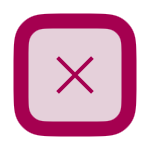
Example of icon button modified:
"styles": {
    "components": {
        "iconButton": {
            "backgroundColorTertiary": "#E5D0DA",
            "iconColorTertiary": "#A50050",
            "borderColorTertiary": "#A50050",
            "borderWidthTertiary": "5",
            "borderRadius": "8",
            "colorHover": "#F0E0F0",
            "colorPressed": "#D0B0D0"
        }
    }
}
Interactive states
Interactive states define how the button component visually responds to user interactions such as hovering or pressing.
These properties allow you to customize the appearance of the button in different states, ensuring a consistent and engaging user experience that aligns with your brand guidelines.
You can adjust colors, borders, and other visual aspects for each interaction state to provide clear feedback and improve usability.
Applies to
| Screen | Mobile |
|---|---|
| Instructions | |
| Document data form | |
| Document data form (help modal) | |
| Feedback | |
Below is a comprehensive list of all the properties that can be customized for the icon button component.
| Parameter | Description |
|---|---|
| backgroundColorTertiaryHover | Background color when hovered |
| backgroundColorTertiaryPressed | Background color when pressed |
| iconColorTertiaryHover | Icon color when hovered |
| iconColorTertiaryPressed | Icon color when pressed |
| borderColorTertiaryHover | Border color when hovered |
| borderColorTertiaryPressed | Border color when pressed |
| borderWidthTertiaryHover | Border width when hovered |
| borderWidthTertiaryPressed | Border width when pressed |
Example of interactive states of the icon button modified:
"styles": {
    "components": {
        "iconButton": {
            "interactiveStates": {
                "backgroundColorTertiaryHover": "#F5F5F5",
                "backgroundColorTertiaryPressed": "#E5D0DA",
                "iconColorTertiaryHover": "#A50050",
                "iconColorTertiaryPressed": "#E5D0DA",
                "borderColorTertiaryHover": "#E5D0DA",
                "borderColorTertiaryPressed": "#A50050",
                "borderWidthTertiaryHover": "2",
                "borderWidthTertiaryPressed": "4"
            }
        }
    }
}
Spinner
The spinner component provides a visual indication that a process is ongoing, such as loading or waiting for the NFC reader. It helps reassure users that the system is working and encourages them to wait until the current operation is complete.

Applies to
| Screen | Mobile |
|---|---|
| Reading (preparing NFC reader) | 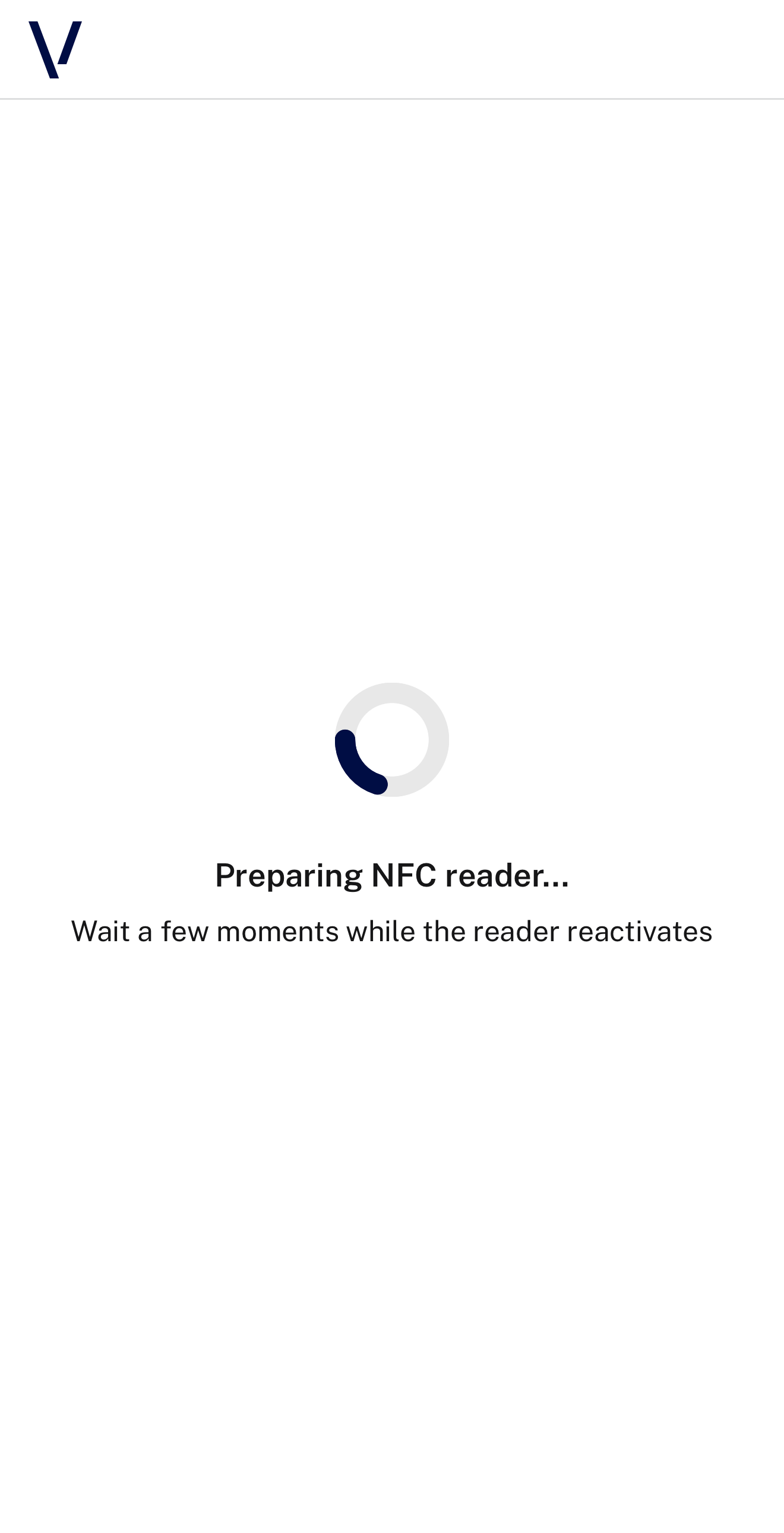 |
You can customize the appearance of the spinner to match your brand's style.
Below is a comprehensive list of all the properties that can be customized for the spinner component.
| Parameter | Description |
|---|---|
| containerColor | Container color |
| progressColor | Progress color |
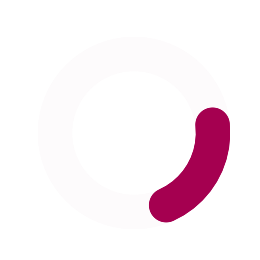
Example of the spinner modified:
"styles": {
    "components": {
        "spinner": {
            "containerColor": "#E5D0DA",
            "progressColor": "#A50050"
        }
    }
}
Modal
The modal component is a popup window that appears on top of the main application content. It is used to display important information or to request user action before continuing.
The same modal parameters apply to every modal of the SDK.
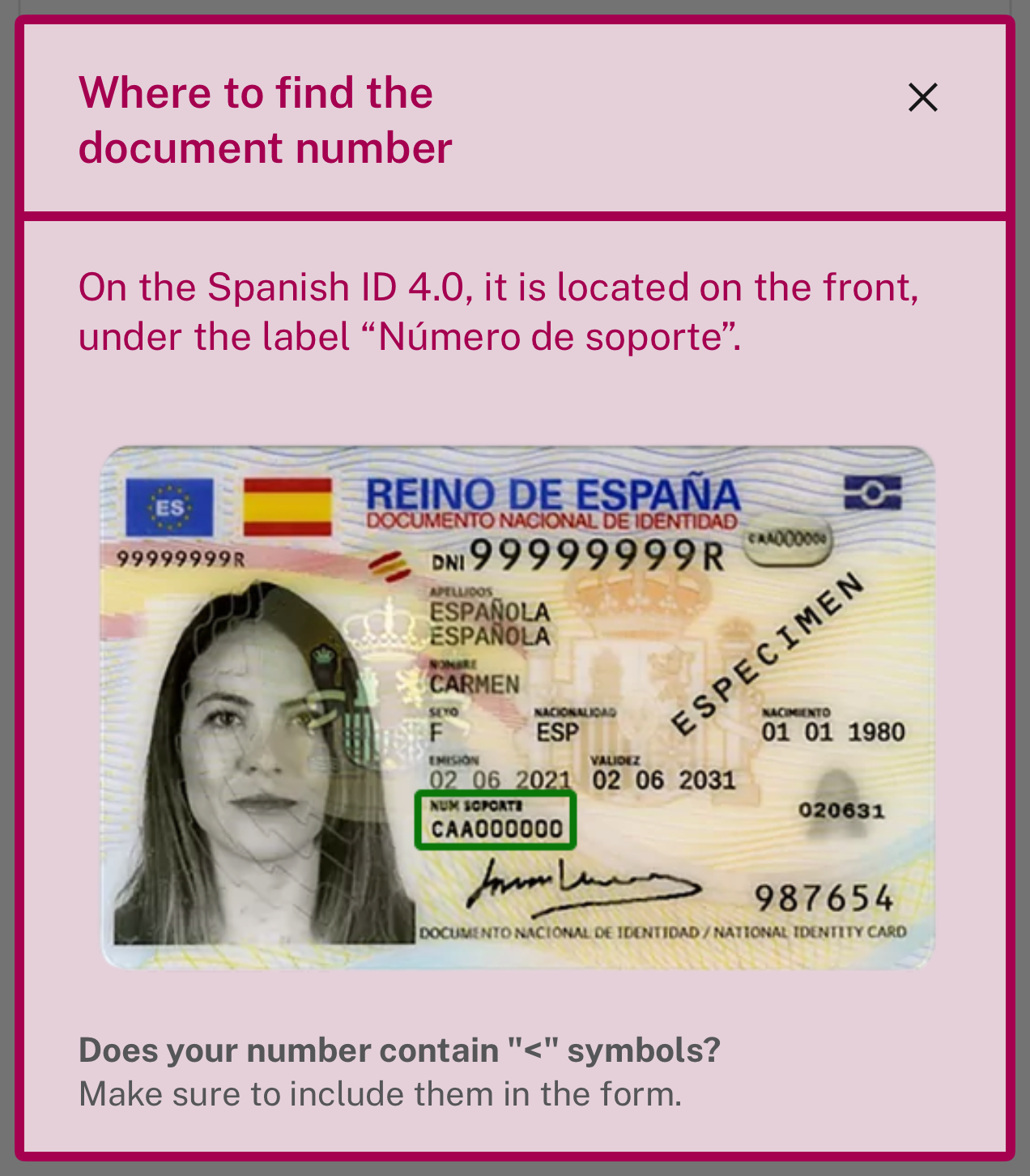
Help modal
In this case, the modal shows the user where to find the document number. It is opened from the "Can't find the number?" button of the document data form.
Applies to
| Screen | Mobile |
|---|---|
| Document data form | |
You can customize the appearance of the help modal to match your brand's style.
Below is a comprehensive list of all the properties that can be customized for the help modal component.
| Parameter | Description |
|---|---|
| backgroundColor | Background color |
| borderColor | Border color |
| borderRadius | Border radius |
| borderWidth | Border width |
| descriptionColor | Description color |
| titleColor | Title color |
Example of the help modal modified:
"styles": {
    "components": {
        "modal": {
            "backgroundColor": "#E5D0DA",
            "borderColor": "#A50050",
            "borderRadius": "2",
            "borderWidth": "4",
            "descriptionColor": "#A50050",
            "titleColor": "#A50050"
        }
    }
}
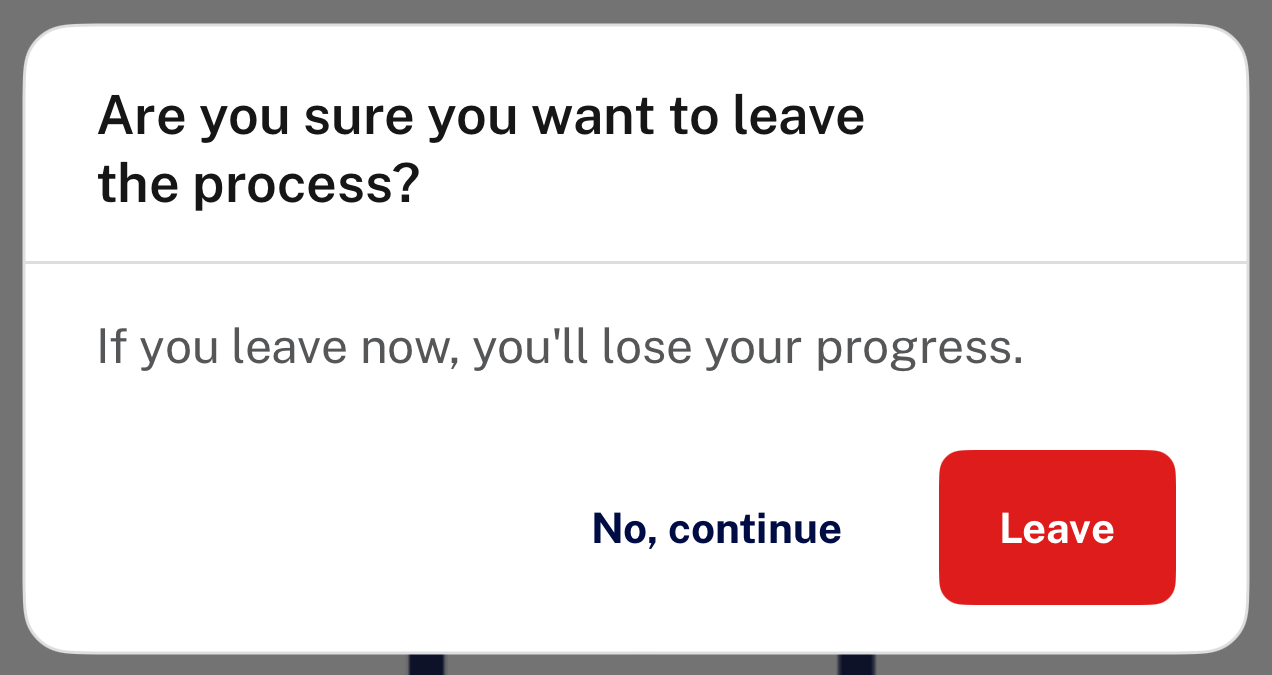
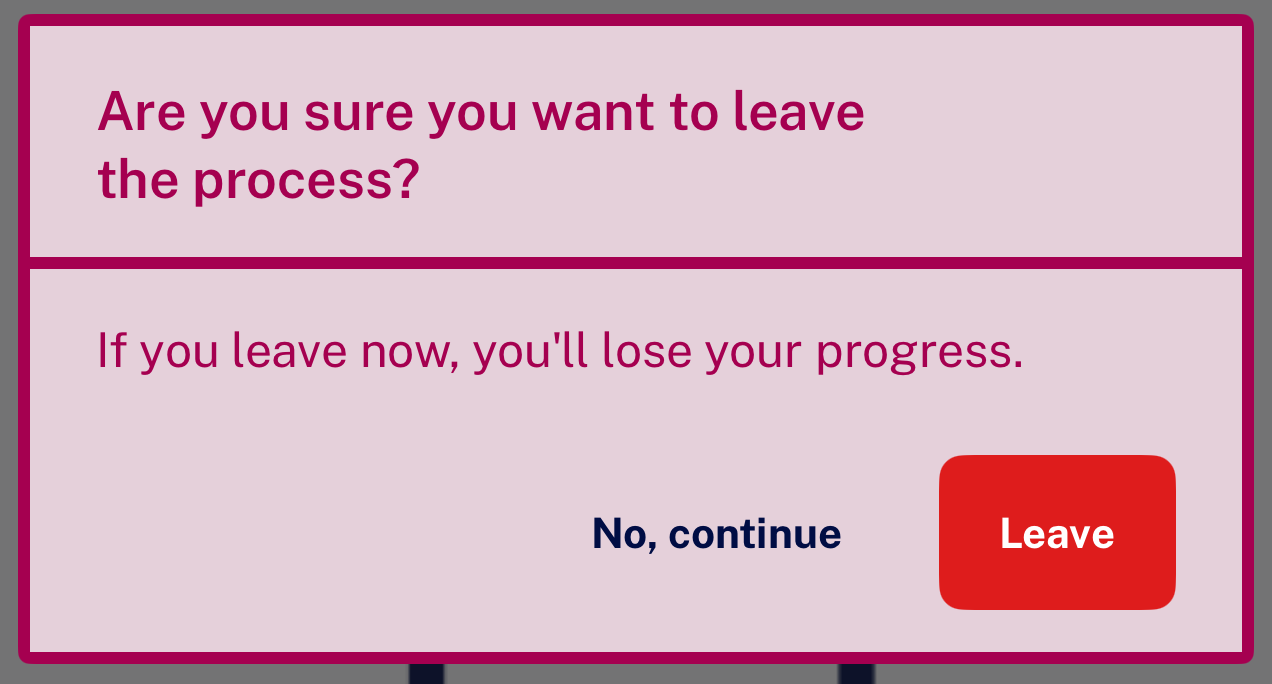
Exit confirmation modal
In this case, the modal acts as a confirmation dialog that asks the user if they really want to leave the process, preventing accidental exits. It is opened from the close button and from the cancel buttons.
Applies to
| Screen | Mobile |
|---|---|
| All screens | |
You can customize the appearance of the exit confirmation modal to match your brand's style.
Below is a comprehensive list of all the properties that can be customized for the exit confirmation modal component.
| Parameter | Description |
|---|---|
| backgroundColor | Background color |
| borderColor | Border color |
| borderRadius | Border radius |
| borderWidth | Border width |
| descriptionColor | Description color |
| titleColor | Title color |
Example of the exit confirmation modal modified:
"styles": {
    "components": {
        "modal": {
            "backgroundColor": "#E5D0DA",
            "borderColor": "#A50050",
            "borderRadius": "2",
            "borderWidth": "4",
            "descriptionColor": "#A50050",
            "titleColor": "#A50050"
        }
    }
}
Calendar
The calendar component is the date picker opened from the date of birth and date of expiry fields of the document data form. Its texts (select and cancel buttons, and the alternative texts of the arrows) are in texts.common.calendar.
Applies to
| Screen | Mobile |
|---|---|
| Document data form | |
Below is a comprehensive list of all the properties that can be customized for the calendar component.
| Parameter | Description |
|---|---|
| backgroundColor | Background color of the days |
| backgroundColorSelected | Background color of the selected day |
| backgroundColorToday | Background color of the current day |
| textColor | Text color of the days |
| textColorSelected | Text color of the selected day |
| textColorToday | Text color of the current day |
| borderColorToday | Border color of the current day |
| borderWidthToday | Border width of the current day |
| iconColor | Color of the navigation arrows |
| reactiveColorPressed | Color when pressed |
| reactiveColorInversePressed | Color when pressed, inverse |
Example of the calendar modified:
"styles": {
    "components": {
        "calendarItems": {
            "backgroundColorSelected": "#A50050",
            "textColorSelected": "#FFFFFF",
            "textColorToday": "#A50050",
            "borderColorToday": "#A50050",
            "borderWidthToday": "1",
            "iconColor": "#A50050"
        }
    }
}